The Wi-Fi setup with cameras just keeps getting better and better, and the Olympus E-M1 is definitely a step up from previous cameras I’ve had (“other” manufacturer). And while it’s not quite up to the “Nuclear option”, i.e., Near Field Communication (NFC), it’s still very quick and easy. 🙂 The best part is after you’re connected. You can actually change several of the more important camera settings, capture images, transfer them to your smartphone/tablet, and even edit them using some of the Olympus Filters.
First, you should download and install the free Olympus O.I. Share app to your smartphone and/or tablet. (I’ve used an iPhone and iPad, so this post will naturally be slanted towards what I’m familiar with.) The next thing to do is enable Wi-Fi on the E-M1 in Menu > Setup Menu > Wi-Fi Settings > Wi-Fi Connect Settings > and set Private, One-Time, Select, or Off. Most of us, most of the time, will use Private because it is the better solution, allowing easier future connections. After Wi-Fi is enabled, you will see a small Wi-Fi icon in the upper left part of the LCD screen. Touching this icon will start the process by showing a screen with a QR Code.
Now, setup your smartphone by going to the Olympus O.I. Share App. At the bottom of the opening screen you’ll see a small camera icon, which when pressed will take you to the Easy Setup option. Just follow the on-screen instructions to scan the QR Code with your phones camera and your phone will then lead you through an easy install process to get things going … no need to input passwords and ID’s. Nice and easy! Then, go to Settings on your phone, select the E-M1 network and in a few seconds the phone should connect to your camera.

Now, back to O.I. Share and select whether you want to use the Remote Control function, Import Photos, Edit Photo, or Add Geotag.
Future sessions should only require you to turn on Wi-Fi on the camera, select it’s network from Phone Settings, and start O.I. Share. (Once Wi-Fi is on, it can be re-enabled by pressing the small Wi-Fi icon near the top left corner of the LCD screen.)
Now that you’re “smart” device is connected to the camera’s Wi-Fi network (the camera generates its own network so you can do this anywhere – no computer network needed), you merely decide what to do. For me, I will most often use Wi-Fi to remotely take photos with the camera by using my iPhone. It’s really a nice setup in that you can use the on-screen shutter button on your phone, or you can use the touch screen to select the focus point (and focus) or select the focus point and shoot all in one touch. Lots of flexibility and control, there. 🙂
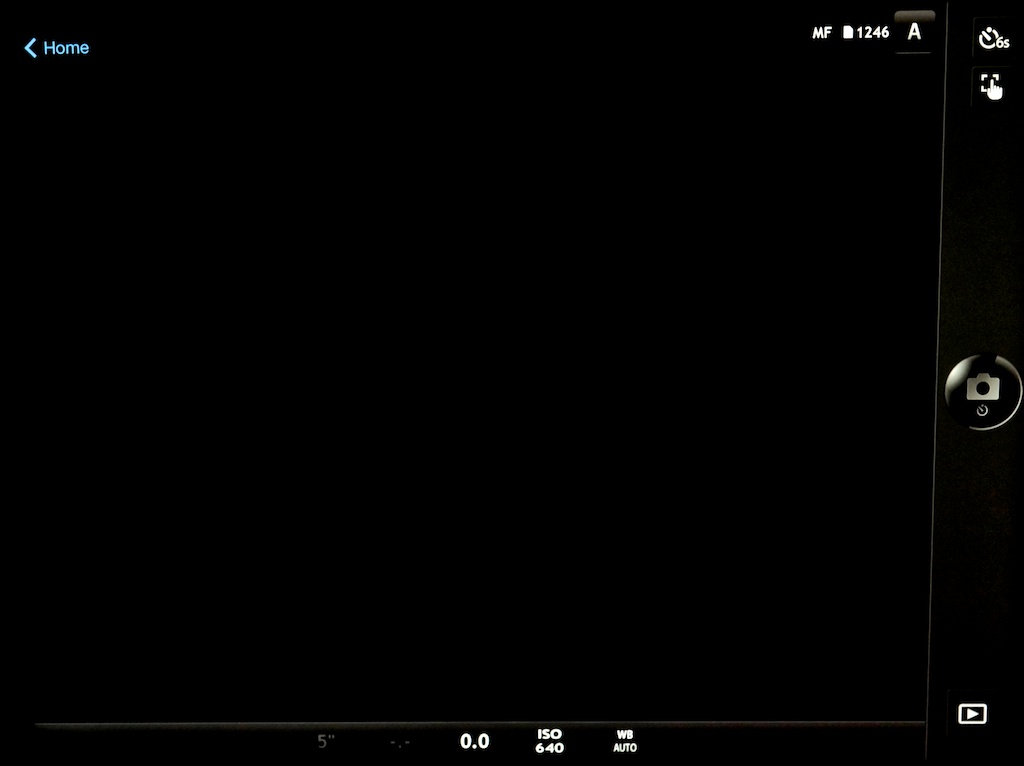 |
| Some of the visible settings show the camera in Manual Focus, Aperture, 6 second timer, WB Auto, and ISO 640. |
Some of the more important camera settings can also be changed from your phone. These include:
- Mode: P,A,S,M,iAuto (camera does NOT remember this setting after you quit the Wi-Fi operation, but reverts to what the Mode Dial is set at.)
The Camera DOES remember the following settings, even if turned Off and back On:
- Drive: Single, H, L, Timer (2,4,6,8,10,12 sec.)(Notice the extra timer settings that are Not available on the camera itself.)
- Touch screen (Focus, or Focus and Shoot)
- Shutter speed
- Aperture
- Exposure Compensation
- ISO (full range)
- White Balance
The operations that you can complete from your phone are:
- Shoot
- Playback
- Import photos from camera (Full size JPGs,). If you have RAW selected, it will transfer as a full size JPG and also upload via your Photo Stream (Apple) to the iCloud and then to Aperture (or iPhoto) on your Mac if that option is set.)
- Edit photos (on your phone)
- Geotag your photos
 |
| The “Edit Photo” functions |
Personally, I think that for shooting and importing, my iPhone will work best since it is smaller and easier to carry around. However, for serious Playback or Editing, I’m sure I would find the iPad much more enjoyable to use.
Much of the time, I think the Wi-Fi option on many of todays digital cameras is kind of a frivolous addition. But I must say I can see times when it could also be a critical capability, especially when shooting in remote locations with a need to be able to upload photos to the internet before you get back to civilization and a networked computer.
How about you … do you like it? What do you use it for?
