Olympus OM-D E-M1 RAW … What Works … What Doesn’t

Like many of you, I prefer to shoot in RAW.  The well established reason is that it gives me more information to work with in post processing … more latitude in “tweaking” the image if necessary.  My second choice (when I have to) is RAW + JPG.  It’s a second choice because then I have twice as many files to deal with plus, it sucks up more memory on my SD card and on my computer.  But, of course, some cameras in some cases force you to shoot JPG.

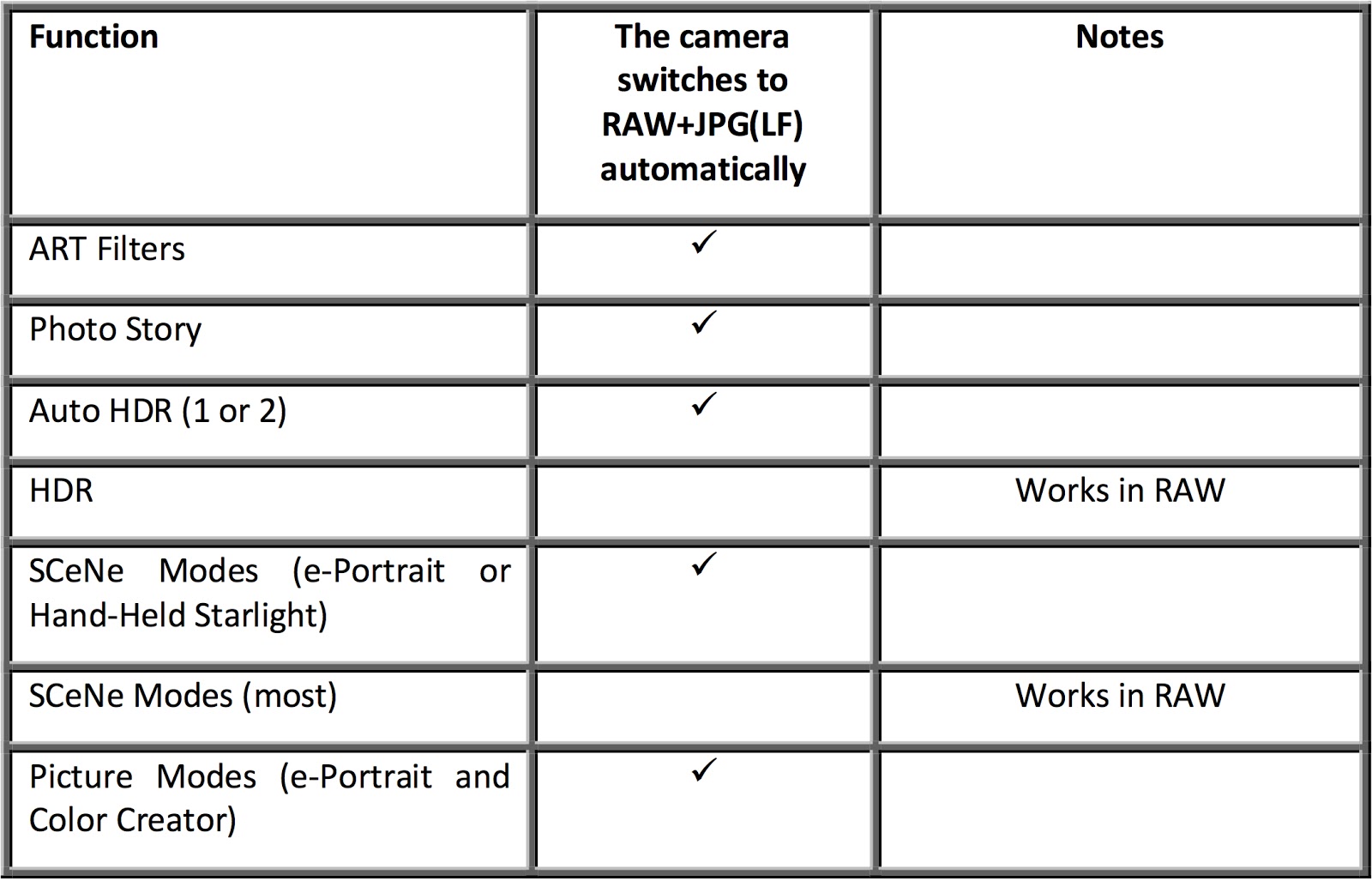
The Olympus OM-D E-M1 actually does a pretty good job of automatically changing the image quality setting to one that is compatible with whatever camera function you’ve selected … but, not always.  In Gary Friedman’s recently released, excellent book about the E-M1, you will find a table showing you how the camera behaves with different settings.  So, below you’ll find a short excerpt from his book that will hopefully clear up what the camera does in those different situations.

———————————————————————————–
Excerpt from “The Complete Guide to Olympus’ OM-D E-M1” by Gary L. Friedman

The E-M1 offers many advanced bells-and-whistles, which are not all compatible with RAW mode. And the ones that don’t support RAW, will (sometimes) silently switch to RAW+JPG (LF) shooting while you use them and then switch back when you’re finished. Which features are incompatible with RAW, and how does the camera behave for each? A comprehensive table appears below:

So, here’s what you really have to remember … a RAW file is always a RAW file and few of the fancy camera settings (except exposure, of course) will apply. The camera may show you the effect in the EVF/LCD, but the RAW file will NOT record that effect. So for those cases where the camera does not automatically switch to RAW+JPG, it is only showing you a preview of what the effect “could” look like.
Fortunately, the Olympus editing software, Olympus Viewer 3, will let you apply all of the in-camera effects to a RAW file on your computer, after the fact. Those include Art Filters, Picture Modes, Color Creator, and Highlight & Shadow Control.

————————————————————————-
You can find a great selection of camera and photography books at The Friedman Archives.


Friedman’s E-Book about the E-M1 is Available!

The e-Book about the Olympus OM-D E-M1 was released by +Gary Friedman , over at The Friedman Archives.  Gary has been writing great books about Sony cameras for years, and has now finally decided to branch out and start writing about these wonderful Olympus cameras.
(NOTE:  You’ll also find a book about the Fuji X100s and an upcoming book about the Fuji X-T1.)
If you’ve read any of Gary’s previous books, you’ll be happy to know he brings the same level and depth of understanding and coverage to this book.  If you haven’t read any of his previous work, then you’ll be pleasantly surprised to find not only complete coverage of the camera and all of it’s functions, but also a ton of excellent general photography tips.  Plus, he writes in an informal and easy reading style.
Here are some of what he’s said about the book on his website:

The OM-D E-M1 camera has been hailed as “The King of Micro Four Thirds” format for good reason! The engineers gave this camera one of the most customizable and nuanced user interfaces ever. While a good move, even experienced users will sometimes need help getting their arms around all of the different permutations of features or groups of features spread across different menus.

In this detailed and easy-to-read reference, professional photographer Gary L. Friedman simplifies the complexity and provides the shortest learning curve for this infinitely-configurable camera.”
When you order one of his e-Books, you get all three versions:  A full color .pdf file, a .mobi version for Kindle, and an .epub file for Nook or other e-reader.  There are print versions available, too, but at an extra cost, of course.
Plus, he has a money-back guarantee, so you really have nothing to lose.


Friedman’s A7/A7R Book – Highly Recommended

A few weeks ago, +Gary Friedman  at The Friedman Archives released his new book about the Sony A7/A7R … and, yes, it’s excellent just like his previous books about various other Sony cameras.

At about 600 pages, it’s a bit bigger than most camera books, but it is filled with A7/R goodness.  🙂  As usual, Gary goes into detail about every feature, function, and button on the camera, while revealing a depth of knowledge that is rare in these types of books.  His background as a NASA engineer and long-time professional photographer give him the insights necessary for this level understanding.  On the other hand, his sense of humor and light style of writing make all of his books very readable and an enjoyable way to learn all the ins and outs of your new camera.

So, give it a look!  And if you don’t have an A7 or A7R, no problem … you’ll find books about virtually every Sony Alpha/Nex camera released over the last few years. Not a Sony shooter?  Well, there is also a recent book about the Fujifilm X100S (X-T1 on the way) and a “coming soon” book about the Olympus OM-D E-M1.

Now Available! The Complete Guide to Fujifilm’s X100s Camera by Tony Phillips!

Tony Phillips is an experienced Pro Photographer from Australia, and has written several excellent camera books.  He’s now followed those up with his latest book about the terrific Fuji X100S.  Here’s what The Friedman Archives has to say about it:

“In this 494-page full-color book you’ll learn: What every mode, button and function does – in plain, easy-to-understand text. My personal camera configuration. The secrets of taking outstanding photos. Details about the innovative features such as Real High Speed flash Sync, the ND Filter, Motion Panorama, Film Simulations, Multiple Exposures and more! All about movie mode. All about Flash and Advanced Lighting. The most common digital “jargon” and what it all means to you. A tutorial to help you get the benefits from shooting RAW. Get the most from your investment – Learn about the wonders of digital imaging and improve your photography at the same time!”

Other titles coming soon from The Friedman Archives include books about the Sony A7/A7R, Sony RX10, and Olympus OM-D E-M1.  Of course, there are also numerous other books about all of the previous Sony Alpha and Nex cameras, and some great general photography titles.  There’s a money back guarantee, so you can’t go wrong … give it a try!  On the website you’ll find easy links to sign up to be notified when future books are ready.

Hidden Functions in the Olympus E-M1

I’m finding that the Olympus OM-D E-M1 has so many functions and features, and a few of them are not that easy to get to.  The critically important ones that most photographers use are very easy to find and change (when the camera is setup properly), things like ISO, Drive Mode, Metering, etc.  However, there are a few of the more esoteric, rarely used functions, that can be downright difficult to find and setup for use, so let’s take a look at some of these and how best to access them.

Most frequently used settings can be reached either directly with one of the buttons on the camera, in the Menu system, or by assigning it to one of the customizable buttons.  And the beauty of the E-M1 is that most of the customizable buttons are available for the same settings … it’s just a matter of figuring out what works best for you.  Be aware though, that a few of the functions are not directly available in the menus, and/or can only be assigned to specific buttons.

First, let’s consider the AF Stop mode.  It’s not something that many of us will use and , quite frankly, is almost duplicated by the S-AF+MF function where the camera slips into manual focus mode after acquiring focus, just as long as you keep the shutter half pressed.  AF Stop can only be assigned to one button, the Lens Fn Button, and few lenses have one.  The only two that I have experience with are the 12-50mm and the new 12-40mm Pro lenses.  Essentially, as long as this button is held down (if assigned to AF Stop), AF doesn’t function.

Here are a few more:
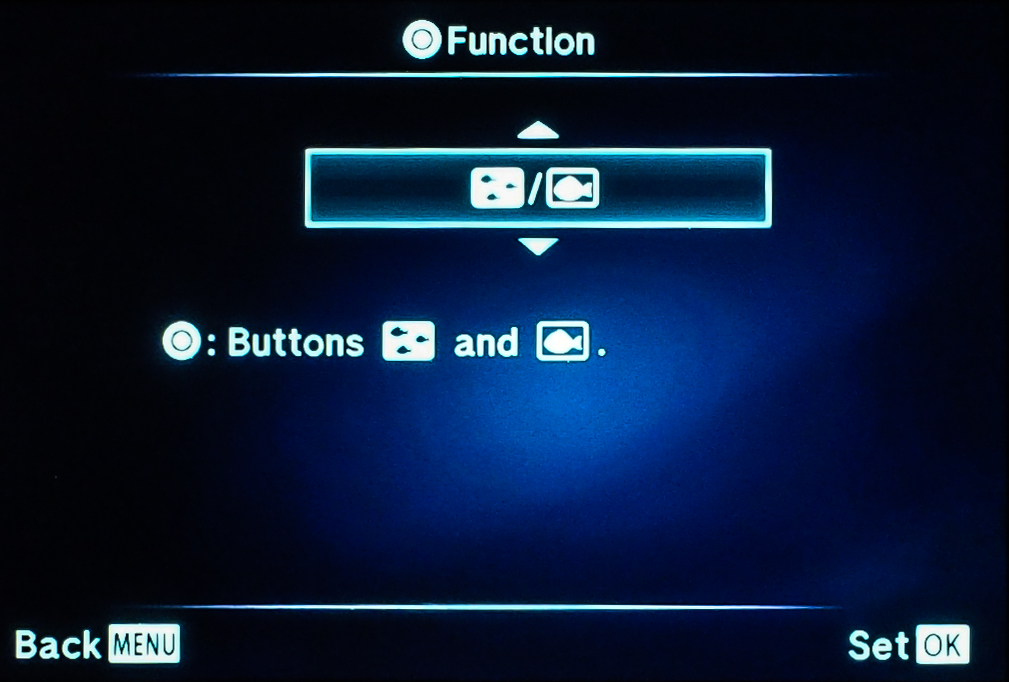
Electric Zoom can only be assigned to the Right or Down Buttons and only when the Arrow Pad is set to “Direct Function”.  When set and then pressed, it allows you to use the Up/Down Buttons to zoom a lens that has electric zoom like the 12-50mm lens does.

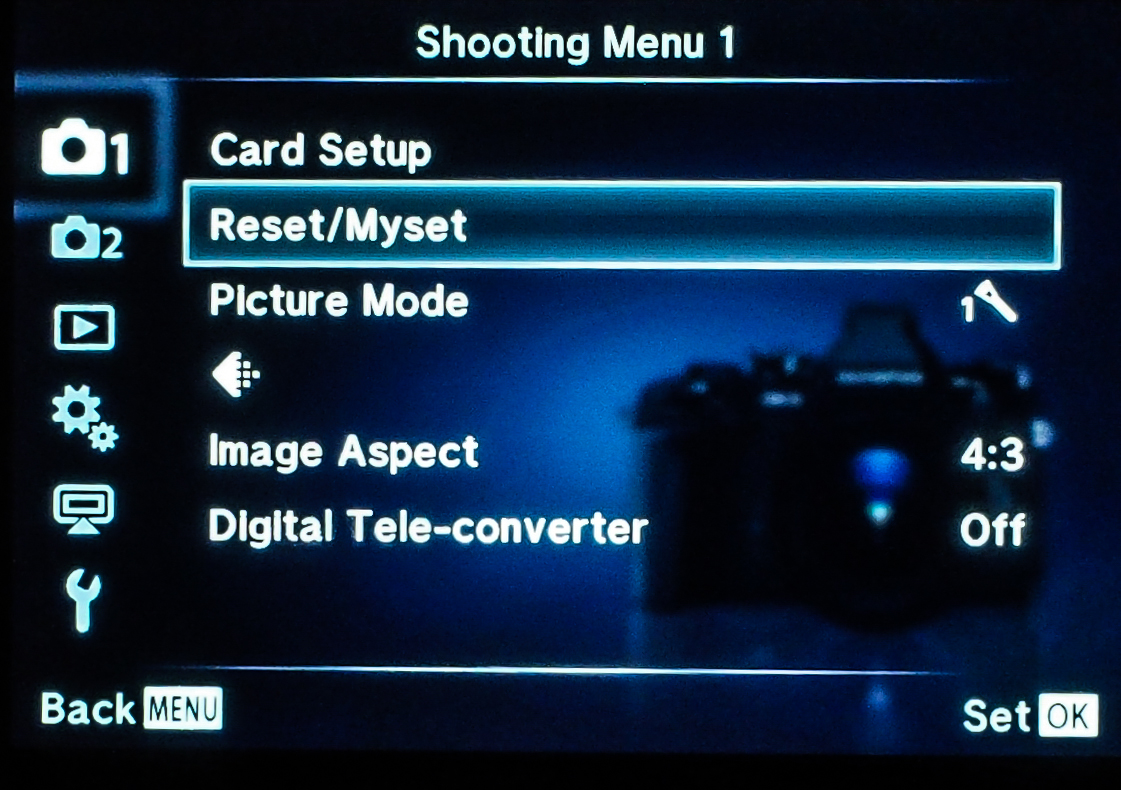
Mysets are setup in Shooting Menu 1, but then can only be used if assigned to one of the customizable Buttons (or a spot on the Mode Dial).

Multi Function is another one that can only be found when assigned to a Button, but is worthwhile because of its flexibility.  It gives you access to Highlight and Shadow Control, Color Creator, Magnify, and Aspect Ratio.  Highlight and Shadow control can only be found here and gives what is much like a tone curve graph to set the contrast of the image prior to the shot.  Color Creator is not only available here, but can be found in the Super Control Panel, and allows almost infinite control over the color tone and saturation in your photo.

Test Picture can only be used when assigned to a Button and basically does what it says.  It lets you take a “test” photo and view the result on the LCD, but does not save it your SD card.

DOF (depth of field) Preview:  We all know what it does and need to know that the only place to get it is when assigned to one of the camera’s buttons.

Underwater Photography isn’t something that a lot of us will use this camera for, but it’s a very nice feature for those who do.  And, of course, it must be assigned to a Button in order to be used.  First, it tries to optimize the camera settings for shooting underwater, plus it allows the kit flash (the FL-LM2) to fire while in the down position, and also lets you zoom a lens with electric zoom (12-50mm), with a button push … nice things to be able to do when your camera is locked inside a waterproof housing.

This has been a very basic introduction to these features, and if you’d like more information feel free to send me an email.  So I hope this helps a little bit in finding some of the “other” features that help make the E-M1 such an awesome camera.  If any of you have found other ones, be sure and leave a comment so the rest of us can figure it out, too.  🙂

Merry Christmas

Merry Christmas!
I hope everyone’s Christmas season is a happy one and the New Year (wow, 2014, already!) 
brings prosperity and new adventures and opportunities.
Mike Hendren
Multiple exposure with the Olympus E-M1 and 12-40mm f/2.8

Wi-Fi with the Olympus OM-D E-M1 – Intro

The Wi-Fi setup with cameras just keeps getting better and better, and the Olympus E-M1 is definitely a step up from previous cameras I’ve had (“other” manufacturer).  And while it’s not quite up to the “Nuclear option”, i.e., Near Field Communication (NFC), it’s still very quick and easy.  🙂  The best part is after you’re connected.  You can actually change several of the more important camera settings, capture images, transfer them to your smartphone/tablet, and even edit them using some of the Olympus Filters.

First, you should download and install the free Olympus O.I. Share app to your smartphone and/or tablet.  (I’ve used an iPhone and iPad, so this post will naturally be slanted towards what I’m familiar with.)  The next thing to do is enable Wi-Fi on the E-M1 in Menu > Setup Menu > Wi-Fi Settings > Wi-Fi Connect Settings > and set Private, One-Time, Select, or Off.  Most of us, most of the time, will use Private because it is the better solution, allowing easier future connections.  After Wi-Fi is enabled, you will see a small Wi-Fi icon in the upper left part of the LCD screen.  Touching this icon will start the process by showing a screen with a QR Code.

Now, setup your smartphone by going to the Olympus O.I. Share App. At the bottom of the opening screen you’ll see a small camera icon, which when pressed will take you to the Easy Setup option.  Just follow the on-screen instructions to scan the QR Code with your phones camera and your phone will then lead you through an easy install process to get things going … no need to input passwords and ID’s.  Nice and easy!  Then, go to Settings on your phone, select the E-M1 network and in a few seconds the phone should connect to your camera.

Now, back to O.I. Share and select whether you want to use the Remote Control function, Import Photos, Edit Photo, or Add Geotag.

Future sessions should only require you to turn on Wi-Fi on the camera, select it’s network from Phone Settings, and start O.I. Share.  (Once Wi-Fi is on, it can be re-enabled by pressing the small Wi-Fi icon near the top left corner of the LCD screen.)

Now that you’re “smart” device is connected to the camera’s Wi-Fi network (the camera generates its own network so you can do this anywhere – no computer network needed), you merely decide what to do.  For me, I will most often use Wi-Fi to remotely take photos with the camera by using my iPhone.  It’s really a nice setup in that you can use the on-screen shutter button on your phone, or you can use the touch screen to select the focus point (and focus) or select the focus point and shoot all in one touch.  Lots of flexibility and control, there.  🙂
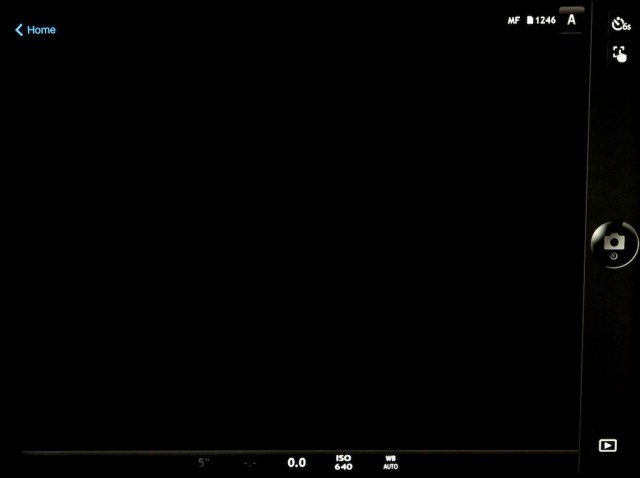
Some of the visible settings show the camera in Manual Focus, Aperture, 6 second timer, WB Auto, and ISO 640.

Some of the more important camera settings can also be changed from your phone.  These include:

  • Mode:  P,A,S,M,iAuto (camera does NOT remember this setting after you quit the Wi-Fi operation, but reverts to what the Mode Dial is set at.)

The Camera DOES remember the following settings, even if turned Off and back On:

  • Drive: Single, H, L, Timer (2,4,6,8,10,12 sec.)(Notice the extra timer settings that are Not available on the camera itself.)
  • Touch screen (Focus, or Focus and Shoot)
  • Shutter speed
  • Aperture
  • Exposure Compensation
  • ISO (full range)
  • White Balance

The operations that you can complete from your phone are:

  • Shoot
  • Playback
  • Import photos from camera (Full size JPGs,).  If you have RAW selected, it will transfer as a full size JPG and also upload via your Photo Stream (Apple) to the iCloud and then to Aperture (or iPhoto) on your Mac if that option is set.)
  • Edit photos (on your phone)
  • Geotag your photos
The “Edit Photo” functions

Personally, I think that for shooting and importing, my iPhone will work best since it is smaller and easier to carry around.  However, for serious Playback or Editing, I’m sure I would find the iPad much more enjoyable to use.

Much of the time, I think the Wi-Fi option on many of todays digital cameras is kind of a frivolous addition.  But I must say I can see times when it could also be a critical capability, especially when shooting in remote locations with a need to be able to upload photos to the internet before you get back to civilization and a networked computer.

How about you … do you like it?  What do you use it for?