Using the Bracket Pro App with Sony’s Nex-6, 5R, and 5T

The original version of this post has been getting lots of attention, lately, so I decided to update it with the full information from my ebook (coauthored with Gary Friedman) about the Sony Nex-6/5R/5T.  The book is available at The Friedman Archives.  (If you’re not shooting one of these three cameras, then you’ll still find books about virtually every Sony Alpha and Nex camera produced in the last few years.)

This is actually quite an unusual camera application.  For years, we’ve had the capability to automatically bracket exposure in our cameras, and initially, this was designed (in the days of film) to help make sure we got a correct exposure since changes were much more difficult (impossible with color slides) to make after the fact.  Not like today’s digital files that give us much more latitude to make corrections.  Then, just a few years ago, HDR (high dynamic range) became popular and we began to demand that our cameras give us at least 3 bracketed images and up to +/- 3.0 EV between each image.
Now, with “Bracket Pro”, bracketing takes on a whole new meaning: the camera keeps the exposure for each image the same, but changes either shutter speed, aperture, focus distance, or flash on/off.  In the case of shutter, aperture, or focus, the camera shoots three images with different settings.  With flash bracketing, it shoots two images: one with flash off and one with flash on.

Let me reiterate … this is not an HDR function, and the camera saves all of the images for you, with no in-camera merging.

So, what’s the big deal?  Well, let’s take a look at each of these four functions and talk about what they can do for you.  But first, if you are not intimately familiar with shutter speed and aperture, and how they relate to each other, depth of field, and exposure, then please do a quick review.
These are all easy to invoke by selecting: Menu → Application → Bracket Pro → (and then either) BRK Tv, BRK Av, BRK FOCUS, or BRK (flash symbol).  Most likely, the first thing you will see is a warning.  For instance, if you are in Program Mode and select BRK Av (aperture bracketing), the camera screen will say “Unavailable in this shooting mode” and that it will automatically switch to Aperture Priority while in BRK Av.  So just select “OK” and keep going.  The display and controls for BRK Av and BRK Tv are very similar.
With Tv (shutter) or Av (aperture) bracketing, you can modify the size of the steps with the Control Wheel from 0.3 to 3.0 (Av) and 0.3 to 5.0 (Tv).  In these two bracketing modes, the Control Dial functions as it would in either Aperture or Shutter Priority by changing that setting.  In Flash Bracketing, the Control Dial and Wheel do nothing, and in Focus Bracketing, the Control Wheel selects between 3 distance settings from Narrow to Wide, while the Control Dial operates according to whatever camera Mode you are in.
Shutter Speed Bracketing
Sometimes, we want to freeze action … like in sports, when we try to catch athletes in action but still show them in sharp crisp detail, with no blur from their motion.  On the other hand, there are times that we prefer to blur the motion, like when shooting a busy street at night or the flowing water of a waterfall.  There, we typically go for a slow shutter speed to show the movement of the cars by blurring their lights into streaks.
Sometimes, we’re just not sure what might work best and may not have the luxury to stick around and take multiple shots.  So, set the Bracket Pro app to Shutter Bracketing.  The first thing to understand is that this app requires Shutter Priority, so you will set the primary shutter speed with the Control Dial and use the Control Wheel to select the range of f/stops between each shot.  Here, what you need to know is that the NEX-5R will automatically put the camera in Shutter Priority regardless of your set mode, BUT the NEX-6 will just tell you to switch to Shutter Priority (a function of having a physical mode dial as opposed to the “soft” mode dial on the 5R.)
I also recommend setting ISO to Auto unless you need a specific ISO for the planned photo.  The reason is that when you take the shot the camera will use the shutter speeds as set by you and then attempt to get correct exposures by varying the aperture and ISO, IF in Auto.  So this just allows you to use a wider range of shutter speeds and still get correct exposures.
So, once you’ve got Bracket Pro running and you’ve selected Tv, you are presented with a screen that can be confusing at first.  Refer now to the photo at the top, the first screen after selecting Tv. On the left you see the three shutter speeds, with #1 showing your primary shutter speed selected by the Control Dial.  On the right is the range, and in this case it is set to 2.0.  And there in the lower middle is “The Graph”.  Across the bottom (left to right), you’ll see the complete range of available shutter speeds and the left side represents apertures from wide open (bottom) to the smallest available (top).  The orange rectangle seems to reflect the available range of exposures.  As you adjust the primary (#1) shutter speed with the Control Dial, the orange square moves left and right accordingly.  The width of the orange square corresponds to the selected range.
Now, the important part.  To insure that all three exposures are correct, you must adjust the settings so that points #3 and #2 do not touch the top and bottom edges of the orange square.  If #3 goes to the top, then that image will be over-exposed, and if #2 touches the bottom, that image will be under-exposed.  This happens because you are asking the camera to exceed the available ranges of aperture and ISO.
So, you’re all set up.  All that’s left is to compose the shot and press the shutter button.  The camera will fire off three shots, varying the shutter speeds according to your settings, while “attempting” to correctly expose by also changing the aperture and ISO as necessary.
The downside with Shutter Bracketing is due to those changing apertures and ISO settings.  For instance, if you’re going for a shallow depth of field, it may not be there in all three shots.  Likewise, using Auto ISO you may end up with one or more images with unacceptable noise levels.  Those are just some of the tradeoffs to keep in mind when using this function.
Aperture Bracketing
This function operates almost identically to Shutter Speed Bracketing with one obvious difference – it brackets the aperture to give you different depths of field in each of three images.  It also attempts to maintain a proper exposure for all three images and is thus not suitable for HDR work.
Focus Bracketing
This is the part of this app that makes the least sense to me.  The available adjustments are very vague (Wide, Narrow, or something in between) and the results were consistently unpredictable, at least for me.
Generally, it takes one image at your selected focus point, another at some “other” focus point, and then an image that is completely defocused.  (Frankly, I get plenty of poorly focused images without this kind of help.☺)
I called Sony technical support about this one, and they weren’t much help either.  Although, that was where I found out about why one of the images was never in focus … by design!
Flash Bracketing

This very simply takes two images, one with flash and one without flash.  Once selected, you only have to be sure to either pop-up the flash (on the NEX-6) or attach an external flash and turn it on.
Friedman’s A7/A7R Book – Highly Recommended

A few weeks ago, +Gary Friedman  at The Friedman Archives released his new book about the Sony A7/A7R … and, yes, it’s excellent just like his previous books about various other Sony cameras.

At about 600 pages, it’s a bit bigger than most camera books, but it is filled with A7/R goodness.  🙂  As usual, Gary goes into detail about every feature, function, and button on the camera, while revealing a depth of knowledge that is rare in these types of books.  His background as a NASA engineer and long-time professional photographer give him the insights necessary for this level understanding.  On the other hand, his sense of humor and light style of writing make all of his books very readable and an enjoyable way to learn all the ins and outs of your new camera.

So, give it a look!  And if you don’t have an A7 or A7R, no problem … you’ll find books about virtually every Sony Alpha/Nex camera released over the last few years. Not a Sony shooter?  Well, there is also a recent book about the Fujifilm X100S (X-T1 on the way) and a “coming soon” book about the Olympus OM-D E-M1.

Now Available! The Complete Guide to Fujifilm’s X100s Camera by Tony Phillips!

Tony Phillips is an experienced Pro Photographer from Australia, and has written several excellent camera books.  He’s now followed those up with his latest book about the terrific Fuji X100S.  Here’s what The Friedman Archives has to say about it:

“In this 494-page full-color book you’ll learn: What every mode, button and function does – in plain, easy-to-understand text. My personal camera configuration. The secrets of taking outstanding photos. Details about the innovative features such as Real High Speed flash Sync, the ND Filter, Motion Panorama, Film Simulations, Multiple Exposures and more! All about movie mode. All about Flash and Advanced Lighting. The most common digital “jargon” and what it all means to you. A tutorial to help you get the benefits from shooting RAW. Get the most from your investment – Learn about the wonders of digital imaging and improve your photography at the same time!”

Other titles coming soon from The Friedman Archives include books about the Sony A7/A7R, Sony RX10, and Olympus OM-D E-M1.  Of course, there are also numerous other books about all of the previous Sony Alpha and Nex cameras, and some great general photography titles.  There’s a money back guarantee, so you can’t go wrong … give it a try!  On the website you’ll find easy links to sign up to be notified when future books are ready.

Setting Up the Olympus OM-D E-M1 – My Way

This is a rewrite of an earlier post I did months ago about setting up the Olympus OM-D E-M5.

I’ve updated the section on the Arrow Pad settings to reflect how I’ve changed the Lever settings.

The menus of the Olympus OM-D E-M1 provide a deep, but fairly well organized hierarchy of almost all of the functions and settings that can be changed on this camera, and there are many. Some of you may feel that it is too complicated, but I think this complexity is what allows us the ability and freedom to customize this camera to our own personal taste, and that is where much of its power derives.  So while it may take a while to figure out exactly how to set it up to your liking, it’s worth the effort.

I won’t go into all of the available settings, but will cover mainly just the ones that affect the various, customizable buttons that make using the E-M1 a bit easier and faster.  So here are the buttons with my settings and reasoning for it.  It’s been said many times that “opinions are like noses” and everybody has one, so I’d be amazed if any of you set your camera exactly like I set mine … these are just a few of the possibilities.  (Speaking of which, how about one of you math whizzes telling us how many permutations/possibilities there are with six buttons and about 22 available settings for each one.  🙂  Okay, while we wait for the answer to my pop math quiz, let’s get started.

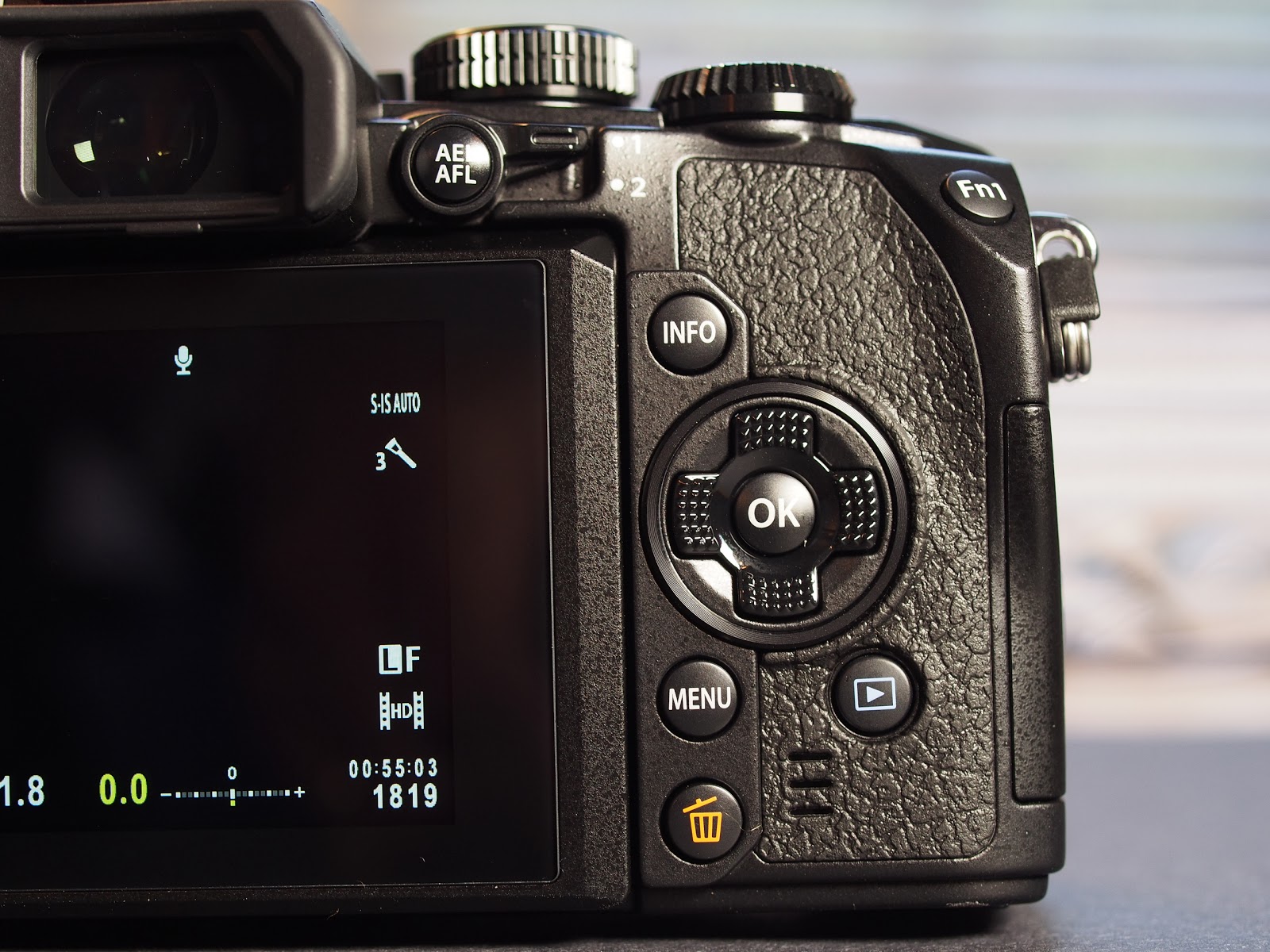
Fn1 Button = [—]HP.  I generally keep my focus set for single target AF since I prefer to choose what I want to focus on instead of letting the camera do it.  Of course, sometimes I need to move this AF point around and this setting gives me an easy way to get it back to center.  (Assuming that Custom Menu A -> [—] Set Home, is set to Single Target AF.)  If I mount an adapted lens that has only MF, then I repurpose this button to Peaking.

Fn2 Button = RAW.  Most of the time, I shoot in RAW.  However, there are some camera settings that require a JPG setting, like Monochrome for instance.  So with this button setting, I can quickly switch from RAW to RAW+JPG and back.

Movie Button = Myset 3.  Okay, this could be any of the Mysets, but #3 just happens to be my HDR preset.  A few of the other HDR settings this will bring up for me are Aperture priority, ISO 200,  RAW, and Continuous H.  I know, it’s so easy to get HDR settings from the front of the dial over the On/Off switch, but it doesn’t automatically change your shooting mode, quality, or ISO from whatever they may be set on.  One very nice thing that you E-M5 shooters will appreciate is that this is a toggle switch so you don’t have to hold it down while taking the shots.

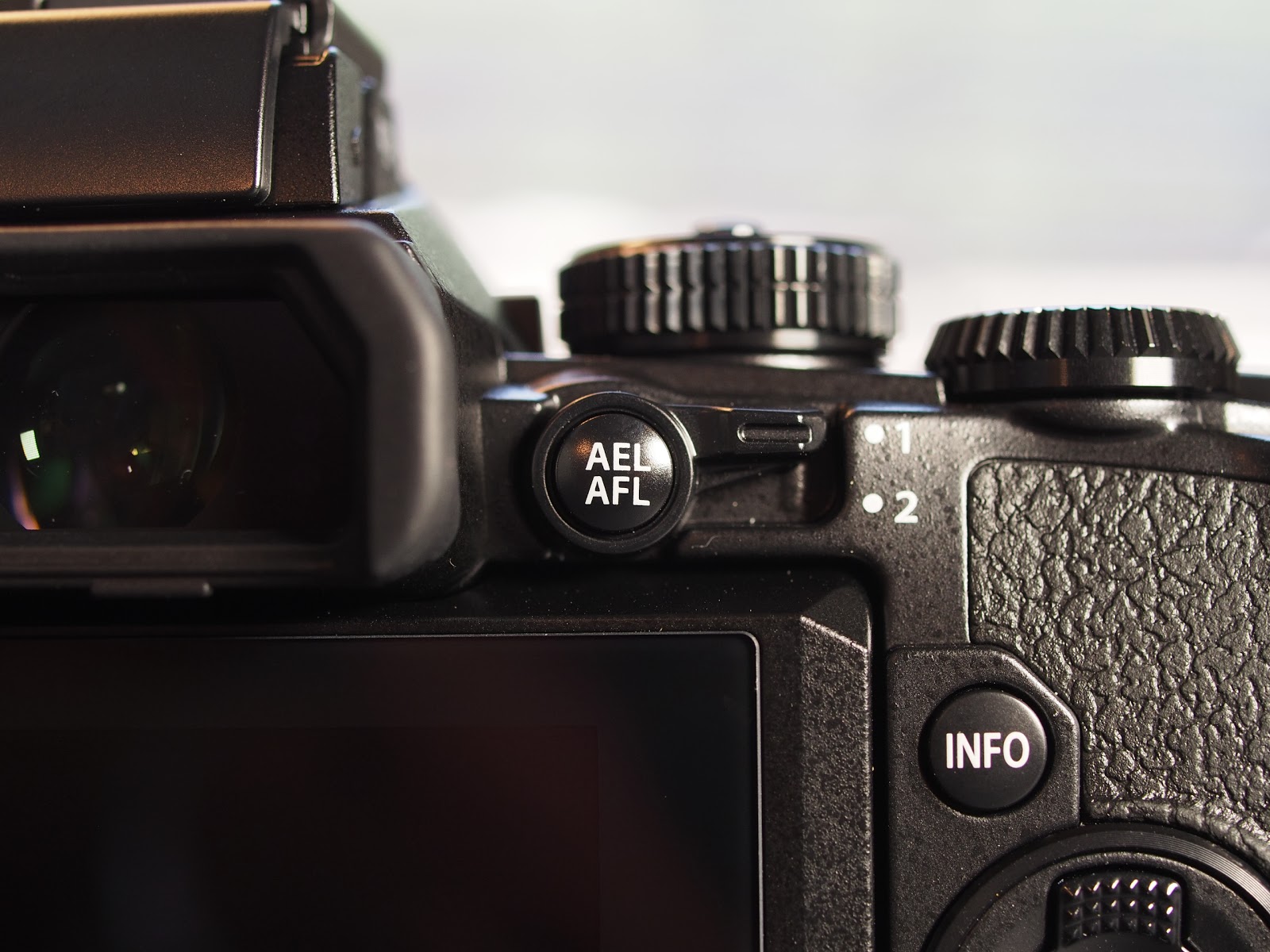
AEL/AFL Button = AEL/AFL.  Imagine that … a button that actually does what it says it will do!  🙂  I like this because in an AF mode, it acts as an AEL button and locks the exposure.  If you’re in MF, pressing it will temporarily turn on S-AF and then revert right back to MF as soon as you release it.  This is commonly known as “Back Button Focus” and can be a very nice way to shoot, even better than S-AF+MF IMHO.

Front Buttons on the right side of the lens:
Top Button = Multi Function.  By pressing and holding this button while turning either the Rear Dial or the Front Dial, you can cycle through four different settings:  Highlight and Shadow Control, Color Creator, Magnify, and Image Aspect.  I like this setting for a couple of reasons.  First, the Highlight and Shadow Control can’t be found anywhere else.  Second, when I mount an adapted MF only lens, this gives me easy access to Magnify as a focusing aid.  The other two settings are nice but are also available on the Super Control Panel.

Bottom Button = Digital Tele-converter.  This setting gives you a 2X magnification of the actual image as long as you have JPG or RAW+JPG set.  With just RAW, you will see the magnification in the display, but the recorded file will be normal.  And while the tele-converter function works pretty well (almost as good as OnOne’s Perfect Resize), I actually prefer to use it as a MF assist function since it only gives 2X instead of the minimum of 5X with normal Focus Assist.

Arrow Pad = Direct Function.  I’ve set the “Arrow Pad” keys to Direct Function. The default setting for these arrow keys is to move the AF point around, but they are “hot” all the time and I kept inadvertently moving them with my thumb.  The Direct Function setting allows me to use the Right Arrow to bring up the Flash Settings menu for quick changes, and the Down Arrow to change the ISO, which I frequently use.  Also in Direct Function, the Left Arrow will activate the AF point selector so you can move the focus point around.  Lastly, the Up Arrow activates the ability to set Exposure Compensation using the arrow keys … but this is a waste for me since I always use the Front Dial for this.  There are only seven settings available for the Arrow Pad keys:  Drive, Flash, Touch Panel Lock, Electric Zoom (for lenses that support it), ISO, WB, and Exposure Compensation.


Update Feb. 19, 2014:  I forgot to talk about using the Arrow Key for ISO.  Yes, I know … this is normally easy to access by putting the Lever to Position 2 and turning the Front Dial.  However, I too often forgot to flip the Lever back up and ended up changing ISO and WB when I was wanting to change Aperture and/or Exp. Comp.  So, in Custom Menu B – Button/Dial/Lever, I’ve set Lever Function to Mode 5, which changes the focus setting between AF and MF as you flip the Lever up and down.

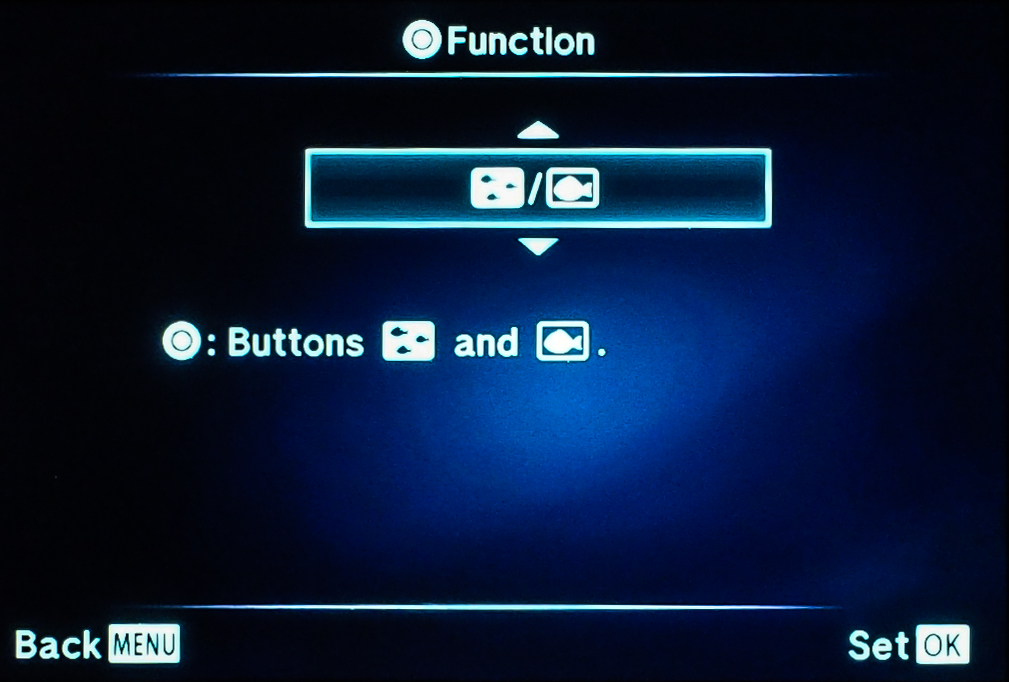
Oh, and one more thing … remember that all six of those buttons have the same settings available (not the Arrow Pad keys), so you can set them up any way you want to.  Lots of flexibility and choice.

There are so many settings on the E-M1 that I could expand this post to several hundred pages, but thankfully, I don’t have to.  Gary Friedman at the www.FriedmanArchives.com has put together a comprehensive manual about every feature and function on the E-M1 with lots of detailed explanations and pretty pictures, too.  If you’re interested, you’ll be able to order the book at his website.

A few photos for your viewing pleasure.  🙂

Hidden Functions in the Olympus E-M1

I’m finding that the Olympus OM-D E-M1 has so many functions and features, and a few of them are not that easy to get to.  The critically important ones that most photographers use are very easy to find and change (when the camera is setup properly), things like ISO, Drive Mode, Metering, etc.  However, there are a few of the more esoteric, rarely used functions, that can be downright difficult to find and setup for use, so let’s take a look at some of these and how best to access them.

Most frequently used settings can be reached either directly with one of the buttons on the camera, in the Menu system, or by assigning it to one of the customizable buttons.  And the beauty of the E-M1 is that most of the customizable buttons are available for the same settings … it’s just a matter of figuring out what works best for you.  Be aware though, that a few of the functions are not directly available in the menus, and/or can only be assigned to specific buttons.

First, let’s consider the AF Stop mode.  It’s not something that many of us will use and , quite frankly, is almost duplicated by the S-AF+MF function where the camera slips into manual focus mode after acquiring focus, just as long as you keep the shutter half pressed.  AF Stop can only be assigned to one button, the Lens Fn Button, and few lenses have one.  The only two that I have experience with are the 12-50mm and the new 12-40mm Pro lenses.  Essentially, as long as this button is held down (if assigned to AF Stop), AF doesn’t function.

Here are a few more:
Electric Zoom can only be assigned to the Right or Down Buttons and only when the Arrow Pad is set to “Direct Function”.  When set and then pressed, it allows you to use the Up/Down Buttons to zoom a lens that has electric zoom like the 12-50mm lens does.

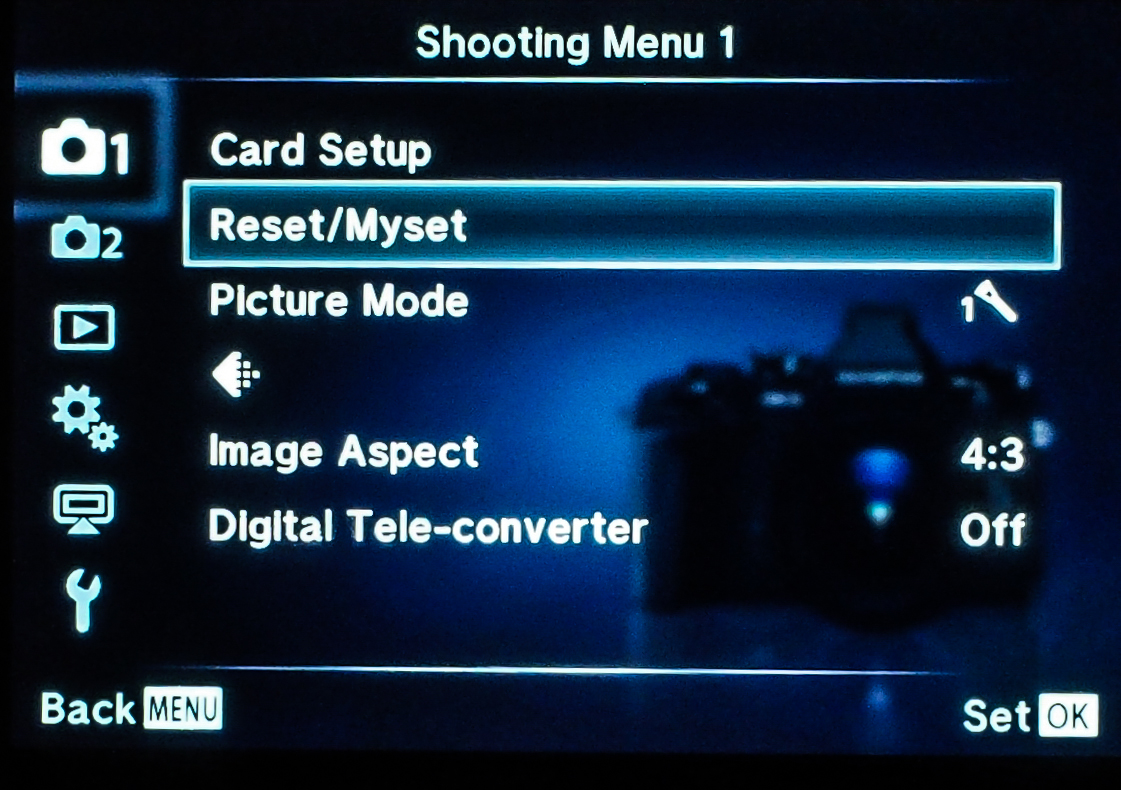
Mysets are setup in Shooting Menu 1, but then can only be used if assigned to one of the customizable Buttons (or a spot on the Mode Dial).

Multi Function is another one that can only be found when assigned to a Button, but is worthwhile because of its flexibility.  It gives you access to Highlight and Shadow Control, Color Creator, Magnify, and Aspect Ratio.  Highlight and Shadow control can only be found here and gives what is much like a tone curve graph to set the contrast of the image prior to the shot.  Color Creator is not only available here, but can be found in the Super Control Panel, and allows almost infinite control over the color tone and saturation in your photo.

Test Picture can only be used when assigned to a Button and basically does what it says.  It lets you take a “test” photo and view the result on the LCD, but does not save it your SD card.

DOF (depth of field) Preview:  We all know what it does and need to know that the only place to get it is when assigned to one of the camera’s buttons.

Underwater Photography isn’t something that a lot of us will use this camera for, but it’s a very nice feature for those who do.  And, of course, it must be assigned to a Button in order to be used.  First, it tries to optimize the camera settings for shooting underwater, plus it allows the kit flash (the FL-LM2) to fire while in the down position, and also lets you zoom a lens with electric zoom (12-50mm), with a button push … nice things to be able to do when your camera is locked inside a waterproof housing.

This has been a very basic introduction to these features, and if you’d like more information feel free to send me an email.  So I hope this helps a little bit in finding some of the “other” features that help make the E-M1 such an awesome camera.  If any of you have found other ones, be sure and leave a comment so the rest of us can figure it out, too.  🙂

Merry Christmas

Merry Christmas!
I hope everyone’s Christmas season is a happy one and the New Year (wow, 2014, already!) 
brings prosperity and new adventures and opportunities.
Mike Hendren
Multiple exposure with the Olympus E-M1 and 12-40mm f/2.8

Wi-Fi with the Olympus OM-D E-M1 – Intro

The Wi-Fi setup with cameras just keeps getting better and better, and the Olympus E-M1 is definitely a step up from previous cameras I’ve had (“other” manufacturer).  And while it’s not quite up to the “Nuclear option”, i.e., Near Field Communication (NFC), it’s still very quick and easy.  🙂  The best part is after you’re connected.  You can actually change several of the more important camera settings, capture images, transfer them to your smartphone/tablet, and even edit them using some of the Olympus Filters.

First, you should download and install the free Olympus O.I. Share app to your smartphone and/or tablet.  (I’ve used an iPhone and iPad, so this post will naturally be slanted towards what I’m familiar with.)  The next thing to do is enable Wi-Fi on the E-M1 in Menu > Setup Menu > Wi-Fi Settings > Wi-Fi Connect Settings > and set Private, One-Time, Select, or Off.  Most of us, most of the time, will use Private because it is the better solution, allowing easier future connections.  After Wi-Fi is enabled, you will see a small Wi-Fi icon in the upper left part of the LCD screen.  Touching this icon will start the process by showing a screen with a QR Code.

Now, setup your smartphone by going to the Olympus O.I. Share App. At the bottom of the opening screen you’ll see a small camera icon, which when pressed will take you to the Easy Setup option.  Just follow the on-screen instructions to scan the QR Code with your phones camera and your phone will then lead you through an easy install process to get things going … no need to input passwords and ID’s.  Nice and easy!  Then, go to Settings on your phone, select the E-M1 network and in a few seconds the phone should connect to your camera.

Now, back to O.I. Share and select whether you want to use the Remote Control function, Import Photos, Edit Photo, or Add Geotag.

Future sessions should only require you to turn on Wi-Fi on the camera, select it’s network from Phone Settings, and start O.I. Share.  (Once Wi-Fi is on, it can be re-enabled by pressing the small Wi-Fi icon near the top left corner of the LCD screen.)

Now that you’re “smart” device is connected to the camera’s Wi-Fi network (the camera generates its own network so you can do this anywhere – no computer network needed), you merely decide what to do.  For me, I will most often use Wi-Fi to remotely take photos with the camera by using my iPhone.  It’s really a nice setup in that you can use the on-screen shutter button on your phone, or you can use the touch screen to select the focus point (and focus) or select the focus point and shoot all in one touch.  Lots of flexibility and control, there.  🙂

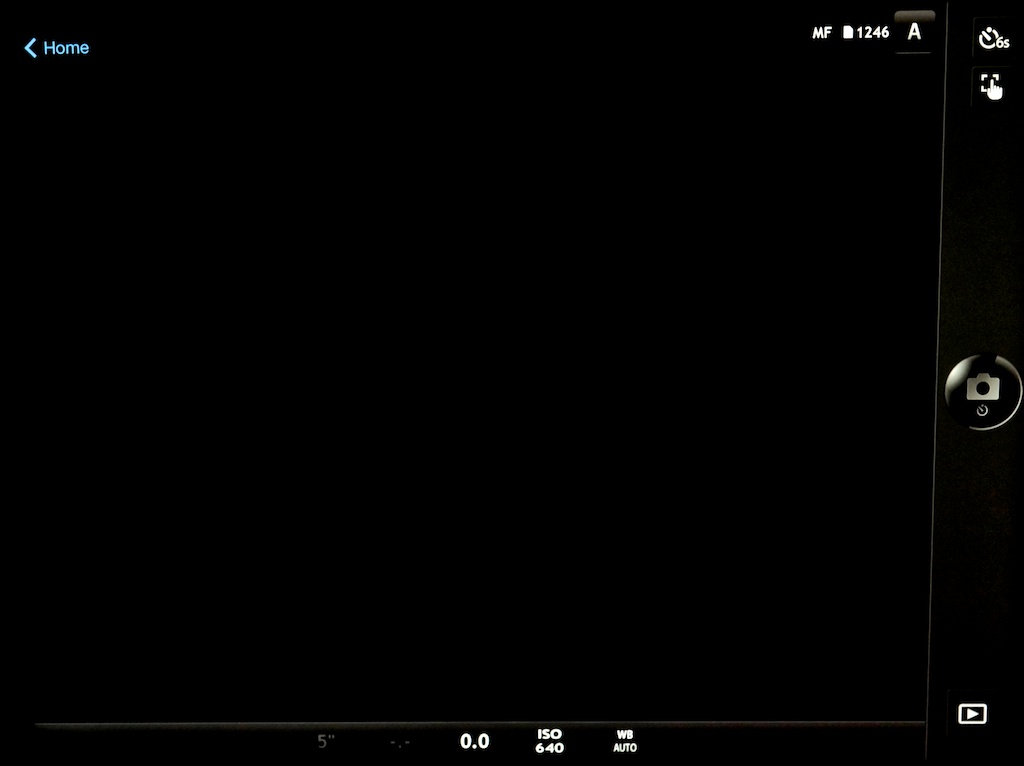
Some of the visible settings show the camera in Manual Focus, Aperture, 6 second timer, WB Auto, and ISO 640.

Some of the more important camera settings can also be changed from your phone.  These include:

  • Mode:  P,A,S,M,iAuto (camera does NOT remember this setting after you quit the Wi-Fi operation, but reverts to what the Mode Dial is set at.)

The Camera DOES remember the following settings, even if turned Off and back On:

  • Drive: Single, H, L, Timer (2,4,6,8,10,12 sec.)(Notice the extra timer settings that are Not available on the camera itself.)
  • Touch screen (Focus, or Focus and Shoot)
  • Shutter speed
  • Aperture
  • Exposure Compensation
  • ISO (full range)
  • White Balance

The operations that you can complete from your phone are:

  • Shoot
  • Playback
  • Import photos from camera (Full size JPGs,).  If you have RAW selected, it will transfer as a full size JPG and also upload via your Photo Stream (Apple) to the iCloud and then to Aperture (or iPhoto) on your Mac if that option is set.)
  • Edit photos (on your phone)
  • Geotag your photos
The “Edit Photo” functions

Personally, I think that for shooting and importing, my iPhone will work best since it is smaller and easier to carry around.  However, for serious Playback or Editing, I’m sure I would find the iPad much more enjoyable to use.

Much of the time, I think the Wi-Fi option on many of todays digital cameras is kind of a frivolous addition.  But I must say I can see times when it could also be a critical capability, especially when shooting in remote locations with a need to be able to upload photos to the internet before you get back to civilization and a networked computer.

How about you … do you like it?  What do you use it for?