
This is a rewrite of an earlier post I did months ago about setting up the Olympus OM-D E-M5.
I’ve updated the section on the Arrow Pad settings to reflect how I’ve changed the Lever settings.
The menus of the Olympus OM-D E-M1 provide a deep, but fairly well organized hierarchy of almost all of the functions and settings that can be changed on this camera, and there are many. Some of you may feel that it is too complicated, but I think this complexity is what allows us the ability and freedom to customize this camera to our own personal taste, and that is where much of its power derives. So while it may take a while to figure out exactly how to set it up to your liking, it’s worth the effort.
I won’t go into all of the available settings, but will cover mainly just the ones that affect the various, customizable buttons that make using the E-M1 a bit easier and faster. So here are the buttons with my settings and reasoning for it. It’s been said many times that “opinions are like noses” and everybody has one, so I’d be amazed if any of you set your camera exactly like I set mine … these are just a few of the possibilities. (Speaking of which, how about one of you math whizzes telling us how many permutations/possibilities there are with six buttons and about 22 available settings for each one. 🙂 Okay, while we wait for the answer to my pop math quiz, let’s get started.

Fn1 Button = [—]HP. I generally keep my focus set for single target AF since I prefer to choose what I want to focus on instead of letting the camera do it. Of course, sometimes I need to move this AF point around and this setting gives me an easy way to get it back to center. (Assuming that Custom Menu A -> [—] Set Home, is set to Single Target AF.) If I mount an adapted lens that has only MF, then I repurpose this button to Peaking.
Fn2 Button = RAW. Most of the time, I shoot in RAW. However, there are some camera settings that require a JPG setting, like Monochrome for instance. So with this button setting, I can quickly switch from RAW to RAW+JPG and back.
Movie Button = Myset 3. Okay, this could be any of the Mysets, but #3 just happens to be my HDR preset. A few of the other HDR settings this will bring up for me are Aperture priority, ISO 200, RAW, and Continuous H. I know, it’s so easy to get HDR settings from the front of the dial over the On/Off switch, but it doesn’t automatically change your shooting mode, quality, or ISO from whatever they may be set on. One very nice thing that you E-M5 shooters will appreciate is that this is a toggle switch so you don’t have to hold it down while taking the shots.
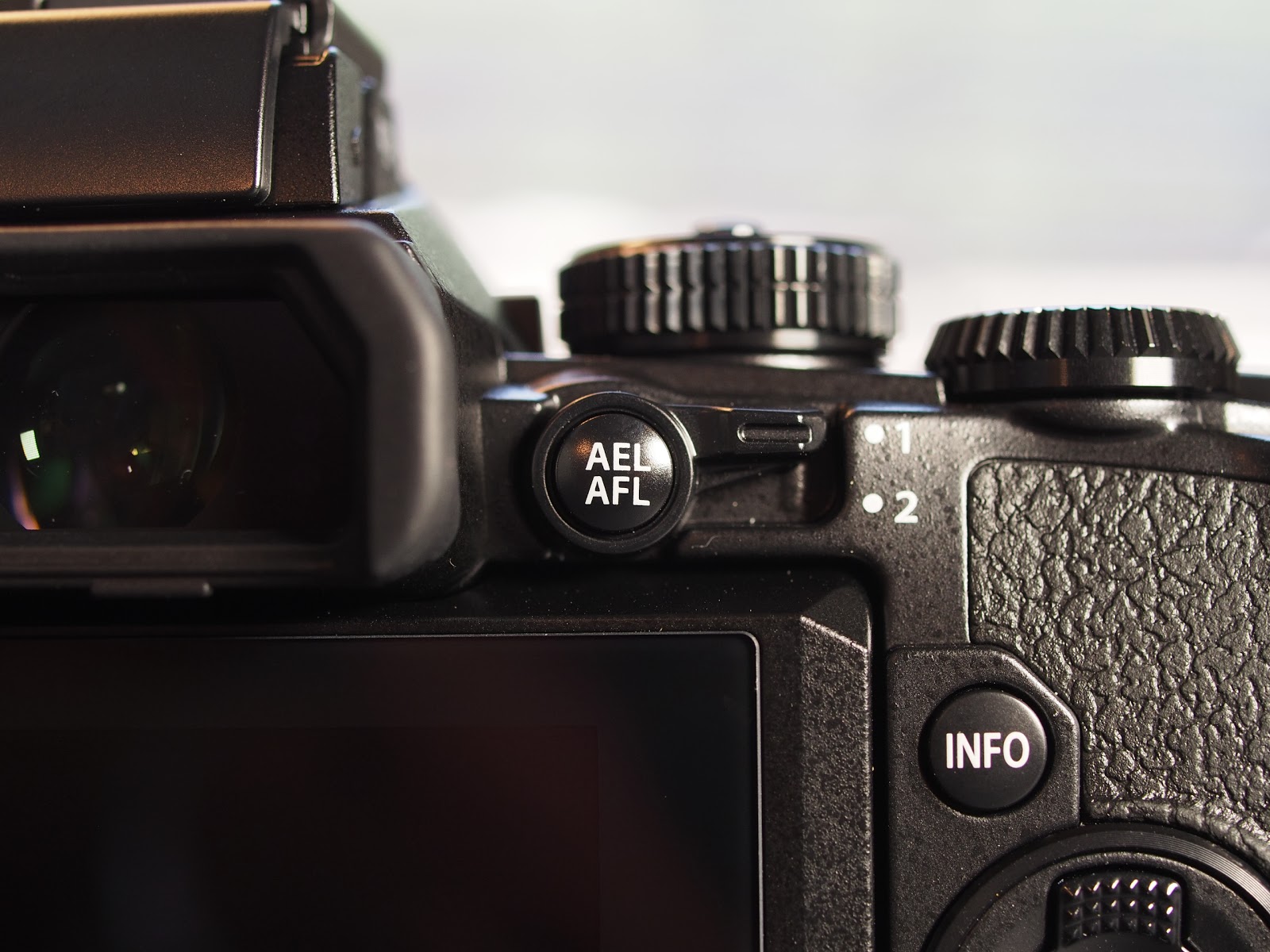
AEL/AFL Button = AEL/AFL. Imagine that … a button that actually does what it says it will do! 🙂 I like this because in an AF mode, it acts as an AEL button and locks the exposure. If you’re in MF, pressing it will temporarily turn on S-AF and then revert right back to MF as soon as you release it. This is commonly known as “Back Button Focus” and can be a very nice way to shoot, even better than S-AF+MF IMHO.
Front Buttons on the right side of the lens:
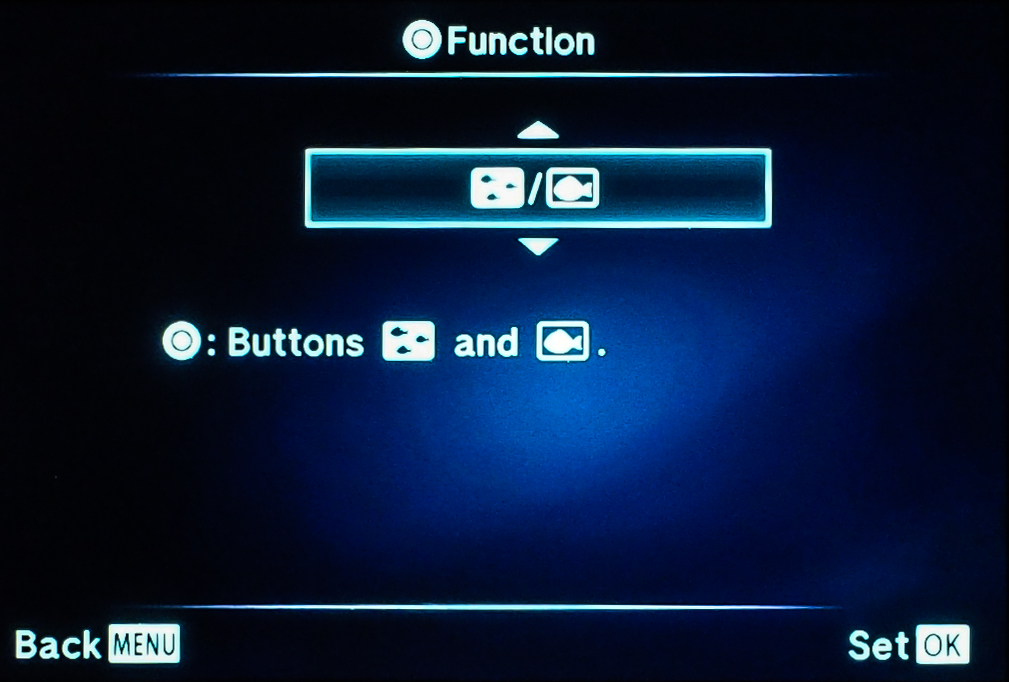
Top Button = Multi Function. By pressing and holding this button while turning either the Rear Dial or the Front Dial, you can cycle through four different settings: Highlight and Shadow Control, Color Creator, Magnify, and Image Aspect. I like this setting for a couple of reasons. First, the Highlight and Shadow Control can’t be found anywhere else. Second, when I mount an adapted MF only lens, this gives me easy access to Magnify as a focusing aid. The other two settings are nice but are also available on the Super Control Panel.
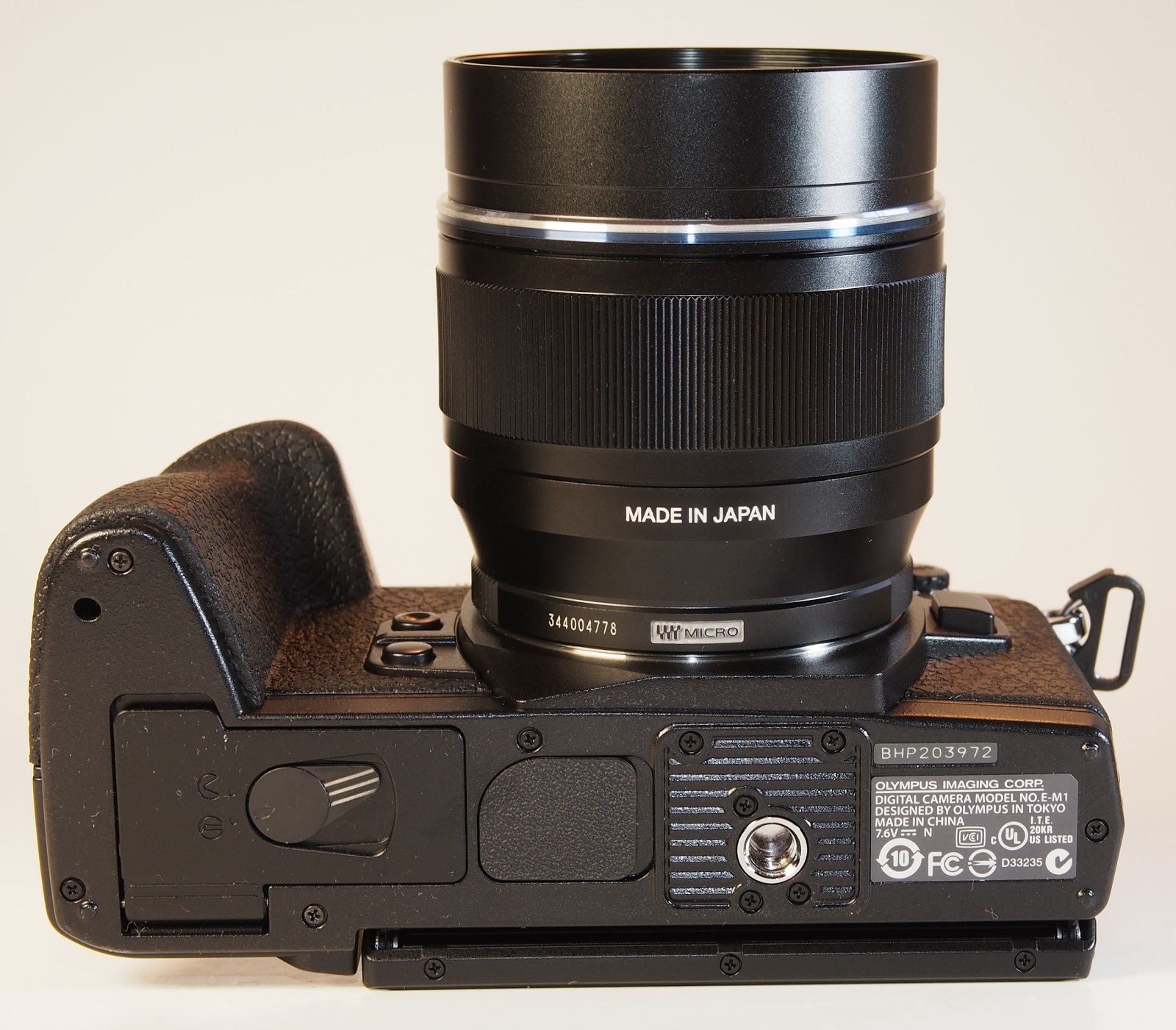
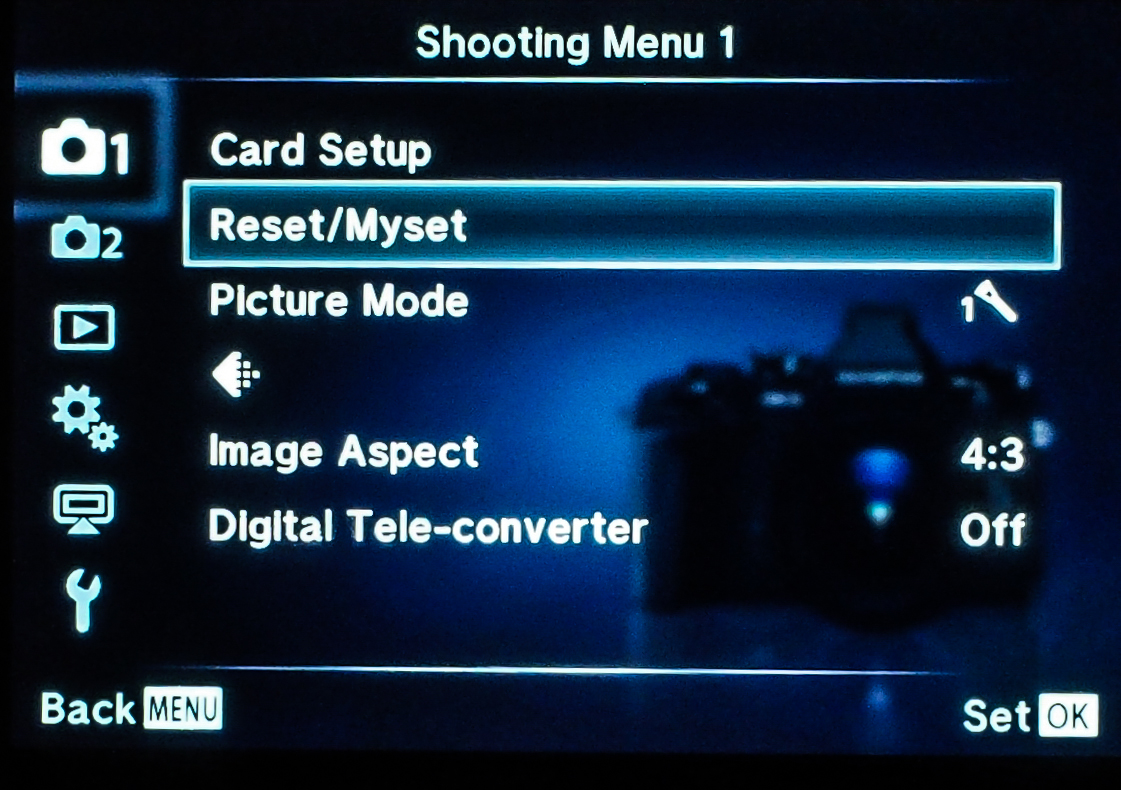
Bottom Button = Digital Tele-converter. This setting gives you a 2X magnification of the actual image as long as you have JPG or RAW+JPG set. With just RAW, you will see the magnification in the display, but the recorded file will be normal. And while the tele-converter function works pretty well (almost as good as OnOne’s Perfect Resize), I actually prefer to use it as a MF assist function since it only gives 2X instead of the minimum of 5X with normal Focus Assist.
Arrow Pad = Direct Function. I’ve set the “Arrow Pad” keys to Direct Function. The default setting for these arrow keys is to move the AF point around, but they are “hot” all the time and I kept inadvertently moving them with my thumb. The Direct Function setting allows me to use the Right Arrow to bring up the Flash Settings menu for quick changes, and the Down Arrow to change the ISO, which I frequently use. Also in Direct Function, the Left Arrow will activate the AF point selector so you can move the focus point around. Lastly, the Up Arrow activates the ability to set Exposure Compensation using the arrow keys … but this is a waste for me since I always use the Front Dial for this. There are only seven settings available for the Arrow Pad keys: Drive, Flash, Touch Panel Lock, Electric Zoom (for lenses that support it), ISO, WB, and Exposure Compensation.
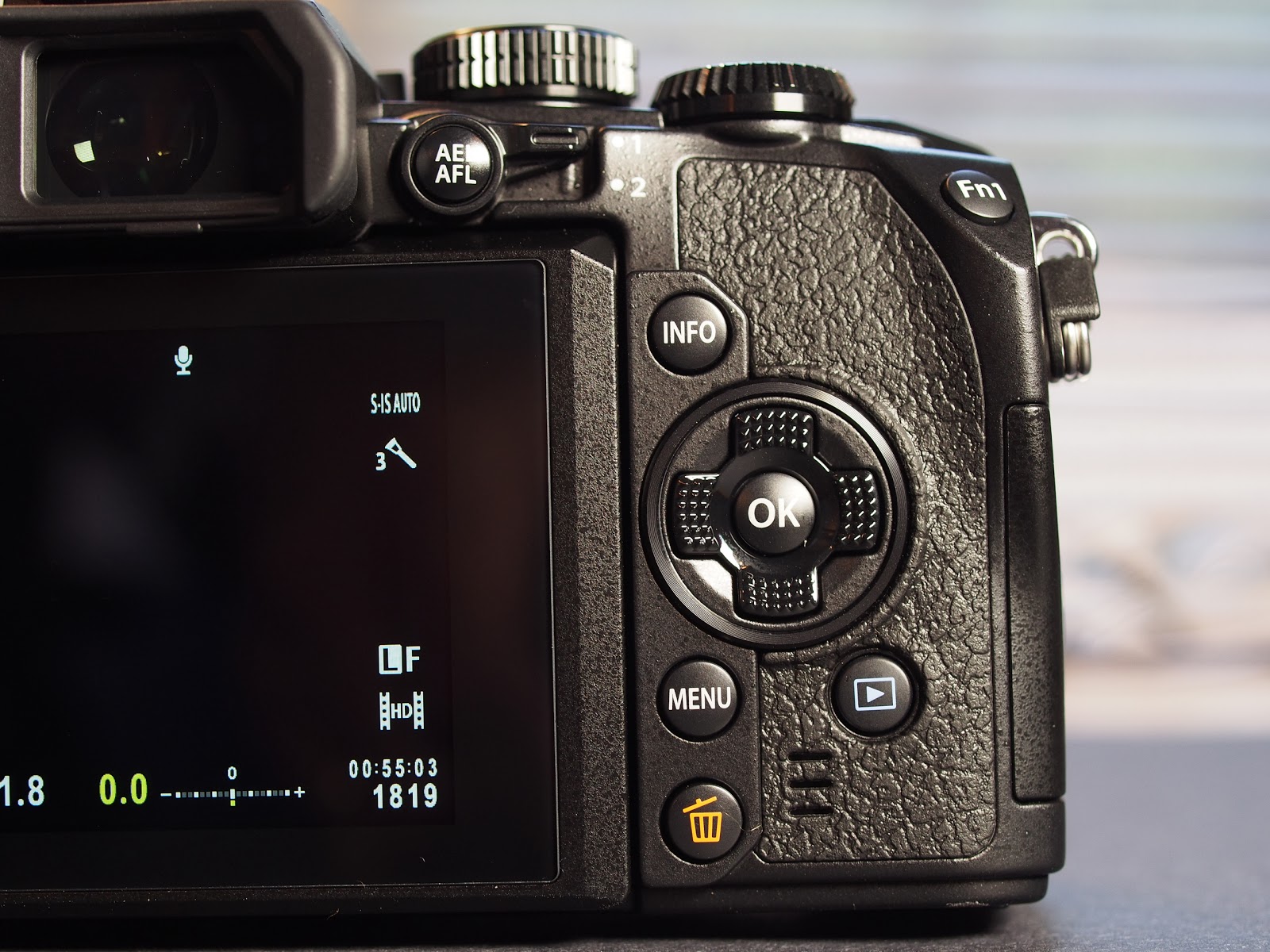
Update Feb. 19, 2014: I forgot to talk about using the Arrow Key for ISO. Yes, I know … this is normally easy to access by putting the Lever to Position 2 and turning the Front Dial. However, I too often forgot to flip the Lever back up and ended up changing ISO and WB when I was wanting to change Aperture and/or Exp. Comp. So, in Custom Menu B – Button/Dial/Lever, I’ve set Lever Function to Mode 5, which changes the focus setting between AF and MF as you flip the Lever up and down.
Oh, and one more thing … remember that all six of those buttons have the same settings available (not the Arrow Pad keys), so you can set them up any way you want to. Lots of flexibility and choice.
There are so many settings on the E-M1 that I could expand this post to several hundred pages, but thankfully, I don’t have to. Gary Friedman at the www.FriedmanArchives.com has put together a comprehensive manual about every feature and function on the E-M1 with lots of detailed explanations and pretty pictures, too. If you’re interested, you’ll be able to order the book at his website.
A few photos for your viewing pleasure. 🙂