E-M1 Super Control Panel is Even More SUPER, Now!

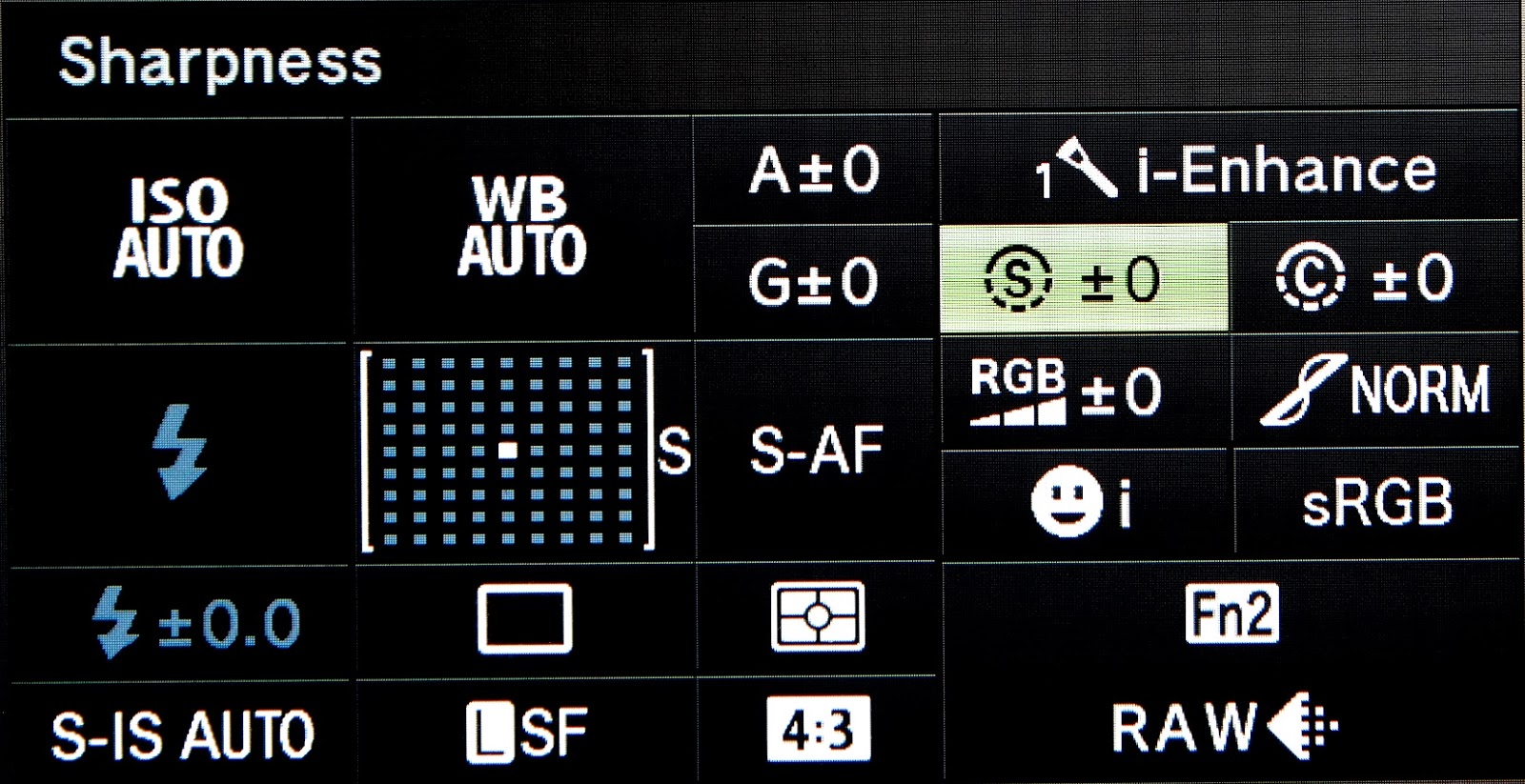
Figure 1.  Top left corner shows you information about what you have selected.

The Super Control Panel (SCP) on Olympus cameras is one of my favorite features.  It is very powerful in that it gives you one button access to about 21(on the the E-M1) camera functions to include ISO, White Balance, AF Modes, and many more.  So, why is it even “More Super” on the E-M1?  It’s that little square in the lower right corner that shows you the settings for each button on the camera … but, more on that in a minute.  First, let’s just talk about general use for the SCP.

I don’t know why Olympus doesn’t enable the SCP by default, but they don’t.  So you have to enable it by going into Menu – Custom Menu D – Disp/*))/PC – Control Settings, and here you have to enable it individually for iAuto, P/A/S/M, ART, and SCN.  And I enable it for all of them.  Oh wait … you don’t have a Custom Menu (gear icon)?  Well, that is also NOT on by default for some strange reason.  So go to Menu – Setup Menu – Menu Display, and turn on Menu Display(gear icon).

Figure 2.

Once enabled, you invoke the SCP by just pressing the OK Button while in a shooting mode (not Photo Story or Movie).  If the SCP doesn’t show itself at first, then press the Info Button once or twice until you see it.  Now, you can move around the screen with either the Rear Dial, the Arrow Pad, or Touch Screen (if enabled).  After you’ve selected the function you want to change, you can either turn the Front Dial to cycle through the settings, or press OK which will open up that functions various settings.

Figure 3.

Okay … now, we’re ready to talk about the extra “Superness” (it Should be a word :-).  On the E-M5, if you selected the square in the lower right corner of the SCP (Figure 2), you could use the Front Dial to cycle through each of your customizable buttons settings to see what you have set … kind of a nice reminder, especially at first while you’re still trying to remember what all of those buttons do.  Now, on the E-M1, press OK and you will be taken directly into the Menu system for that Button (Figure 3) so you can quickly change its action if desired.  SUPER!  🙂

Figure 4.

One more Tip:  When making changes to different functions, be on the lookout for an “Info” icon somewhere on the screen (Figure 4).  (You will only see this IF you use the OK button to select the function on the SCP.)  Sometimes, it will show up in the lower left corner, but other times it’s located elsewhere.  This important icon is telling you to press the Info Button to open up a deeper level of settings for that particular function.  In this case (figure 5), pressing the Info Button highlights the little “x2”, indicating that by using the left/right keys on the Arrow Pad you can change this setting, which tells the camera how many shots to take with this timer setting.  Very nice feature!

Figure 5.

The Super Control Panel is a wonderful time saver, keeping you out of the menu system most of the time.  Plus, it’s easy to use whether you’re looking at the LCD or the EVF, so be sure to enable this feature and save yourself some time and frustration.

For more In-Depth information about the Olympus OM-D E-M1, check out Gary Friedman’s book, available at:  http://www.friedmanarchives.com/OlympusE-M1/index.htm
Using Adapted 3rd Party Lenses with the Olympus E-M1

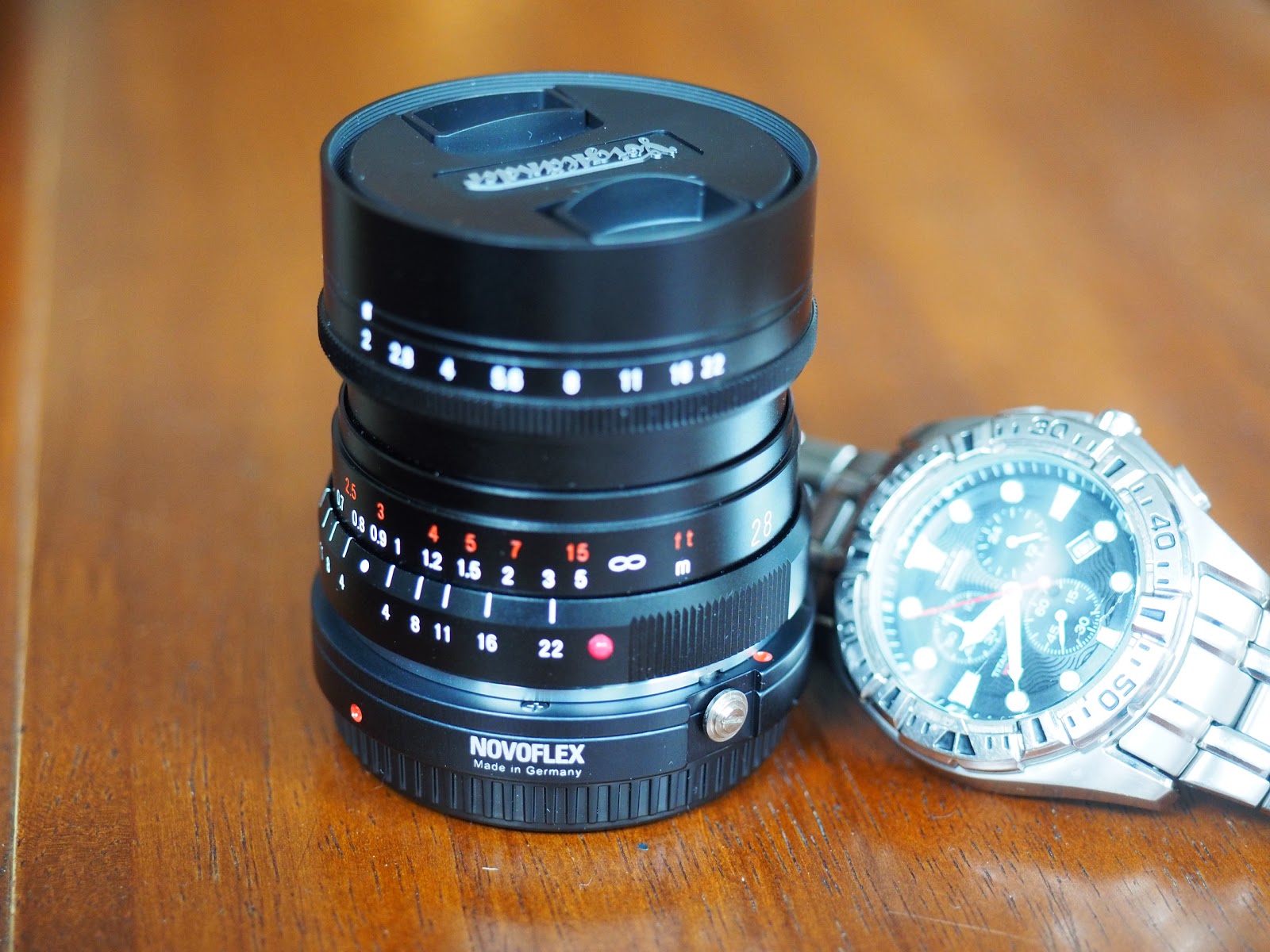
I included the watch just to show the small size of this lens

One of the wonderful features of small sensor, ILC (interchangeable lens) cameras like the Olympus OM-D series (and Pens), is their ability to use almost any lens ever made … IF, someone has made an adapter for it.  And luckily for us, there are already adapters out there for many of the “other” manufacturer’s lenses.

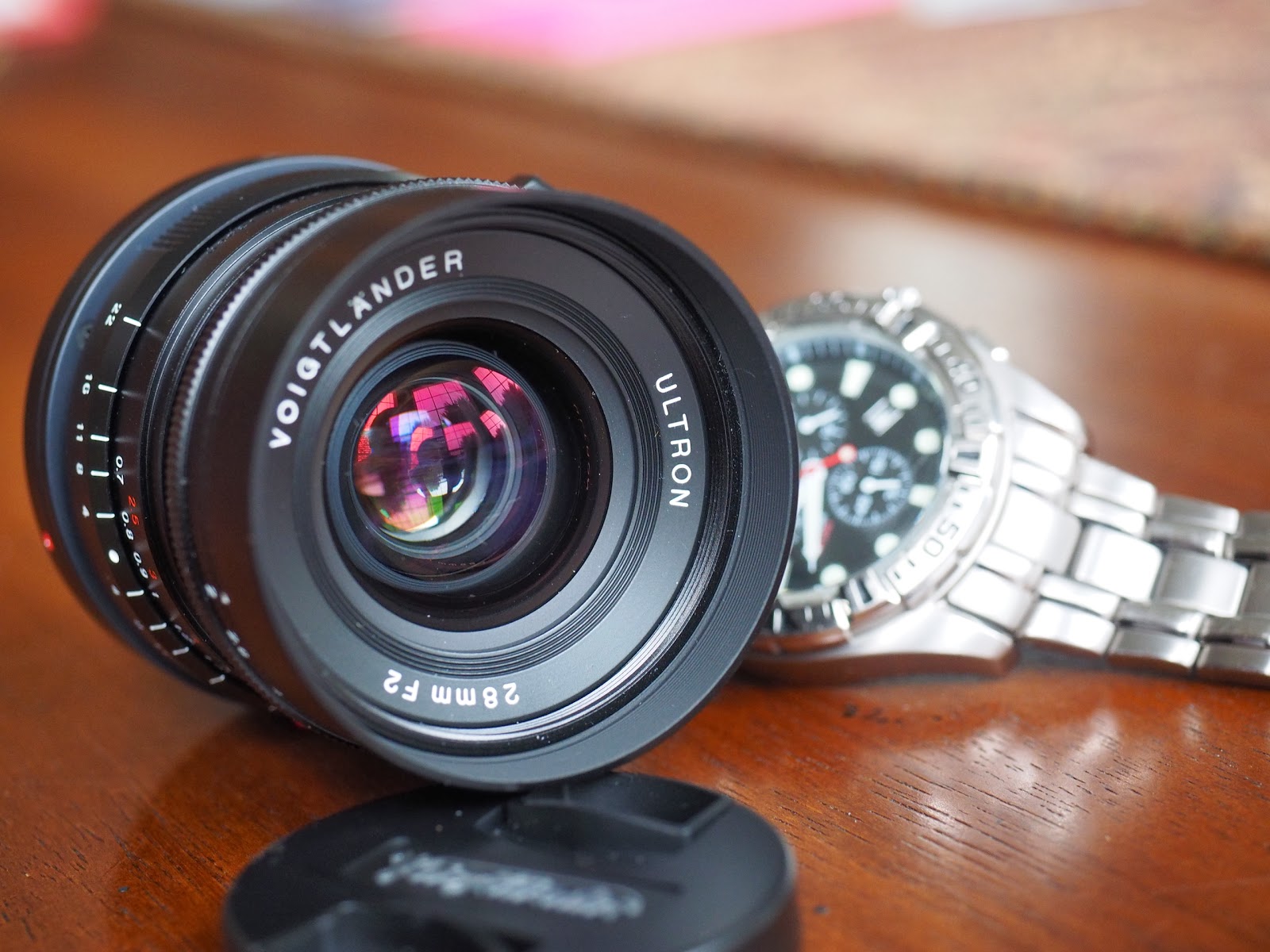
Here, I have the Voigtlander Ultron 28mm f/2 (Leica M-Mount) and I use an adapter from Novoflex, which fits perfectly.  I tried a cheaper Fotodiox Pro adpater first and, like others have discovered, found that it would not fit my camera.  BTW, a word of caution.  An adapter should fit like your lenses do … snug but not overly tight.  If it doesn’t seem to fit right, don’t push it, as I’m sure you don’t want to get that thing stuck on your camera.  🙂

Although there are a few adapters that have some electrical contact with the camera, most don’t.  So this means these lenses are purely manual in focus and f/stop, and also transmit no EXIF data to the camera.  For the E-M1, this causes a couple of additional problems … since the camera has no way of knowing when you’re turning the focus ring, it can’t automatically invoke Magnify or Focus Peaking for you.  But don’t despair because there are ways around this.  🙂

One great thing about the E-M1 is the high level of customizability, which lets you set many different functions to just about any of the external buttons.  In this case, I’ve chosen to use the Preview Button (camera front, right of the lens, lower of the two buttons), and the Movie Button (red dot, top right).  With the Preview Button set to Focus Peaking, I can easily turn it on or off without ever taking my eye from the viewfinder.  Plus, with the Movie Button set to Magnify, I can zoom in for very precise focusing AND use Peaking at the same time.  Nice!

There are a couple of things you need to know about the Magnify function.  The first press will bring up a green rectangle on the LCD (or EVF) showing the portion of the image that will be enlarged, and a second press will actually enlarge it.  Once enlarged, you can also change the magnification factor by turning the Rear Dial to set either 5x, 7x, 10x or 14x.  Once enlarged, it will stay that way from one shot to the next.  So to get out of Magnify, just press the Movie Button again; or select a different Shooting Mode, Menu, or turn the camera off and back on.  To get rid of the green rectangle, just press the OK Button on the back of the camera.

This is the simplest way to use Magnify, but there is one other more useful and slightly more complicated setup.  That is to set the desired button to Multi Function, which gives you more flexibility by letting you choose between Highlight & Shadow Control, Color Creator, Magnify, and Image Aspect.  Then when you press and hold the button and turn the Rear Dial, you can select which of these four functions you want to use the button for.

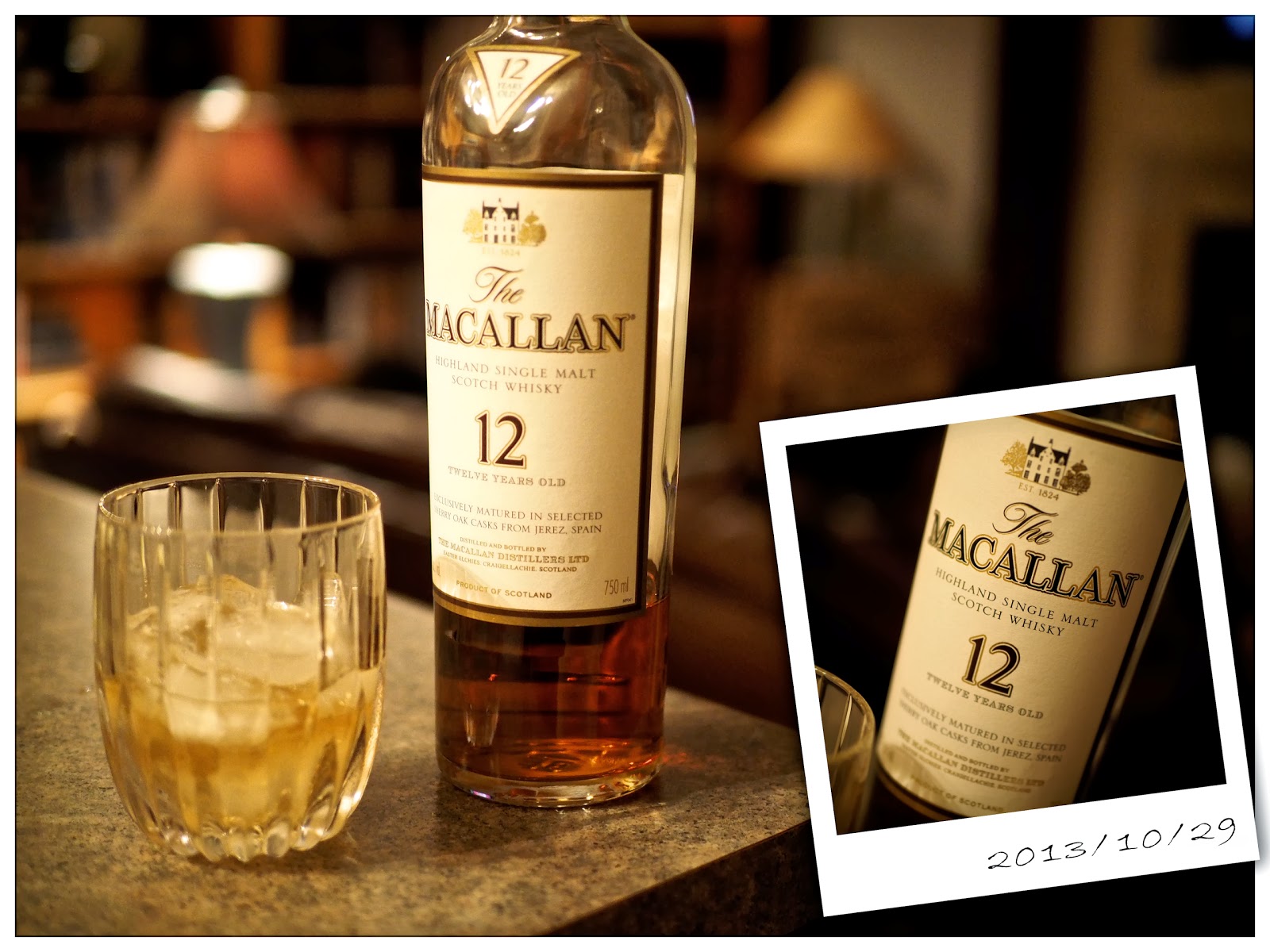
As for the Voigtlander 28mm f/2 lens … I like it!  It’s a nice focal length giving you an effective 56mm lens on a M43 camera.  It’s got lots of character with excellent color and contrast and while sharp in the center at f/2, you will need to stop down to about f/4 to get good sharpness across the frame.  This lower image was taken on the E-M1 with this lens at f/4.

American Veterans – Thank You for Your Service to Our Country

Happy Veterans Day to all of our military members and their families.

You’ve made so many sacrifices to serve our wonderful country, the U.S.A., and from the bottom of our hearts, we appreciate it.

Thank You!

Have Some Fun with Photo Story on the E-M1

Photo Story Fun Frames

Despite what you might read on the internet, it IS possible to have fun with a “Pro” level camera like the Olympus E-M1.  Even though it’s loaded with pro features like serious wireless flash, extreme customizability of the various buttons and dials, and terrific image quality, it also has some great functions and modes for just having a little fun and being a bit creative when you get the urge.  🙂 

Photo Story Standard

One of those “fun” features is the Photo Story Mode found on the Mode Dial.  Once selected, you can choose between literally dozens of combinations of effects to include different layouts, numbers of images, aspect ratio, color or monochrome, borders, etc.

You’ll find three basic sections called Standard, Speed, and Fun Frames.  The top photo here was done using one of the Fun Frames settings.  Just like it sounds, the Speed section puts the camera into a continuous drive mode and would be a good one to use for catching something or someone in action … like sports or kids playing.
Note:  If you shoot a vertical (portrait) layout using Fun Frames, the little white box with the date in it does NOT rotate.  See this image on Flickr.

The camera will allow you to separately frame each part before the shot, and using the touch screen, you can even choose which frame to shoot next.

And, if you set RAW+JPG, the camera will not only capture the Photo Story, but will also keep full sized RAW files of each separate image.  If you only shoot in JPG, then the Photo Story is all you’ll end up with.

In the Speed mode, you can either take each image one at a time or just hold the shutter button down and let the camera rip off all five (or less) images.

Now … get out there and have some fun!  🙂
Photo Story Speed